 Portal for Developers
# Portal for Developers
# Create a Mini App
# Create a new Mini App
There are two ways to create a Mini App:
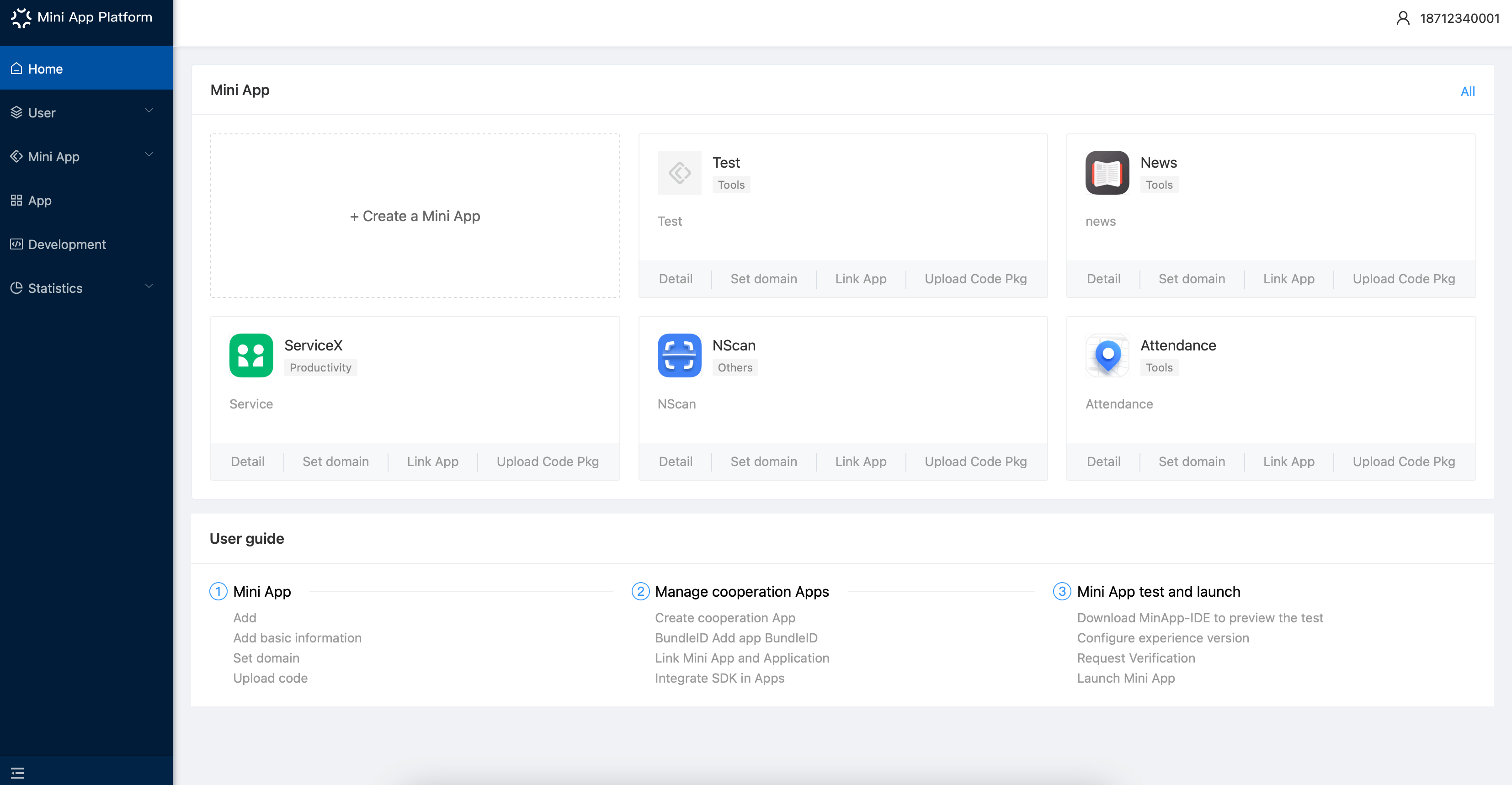
No.1 Log in to SuperApp and click「Create a Mini App」on the home page:
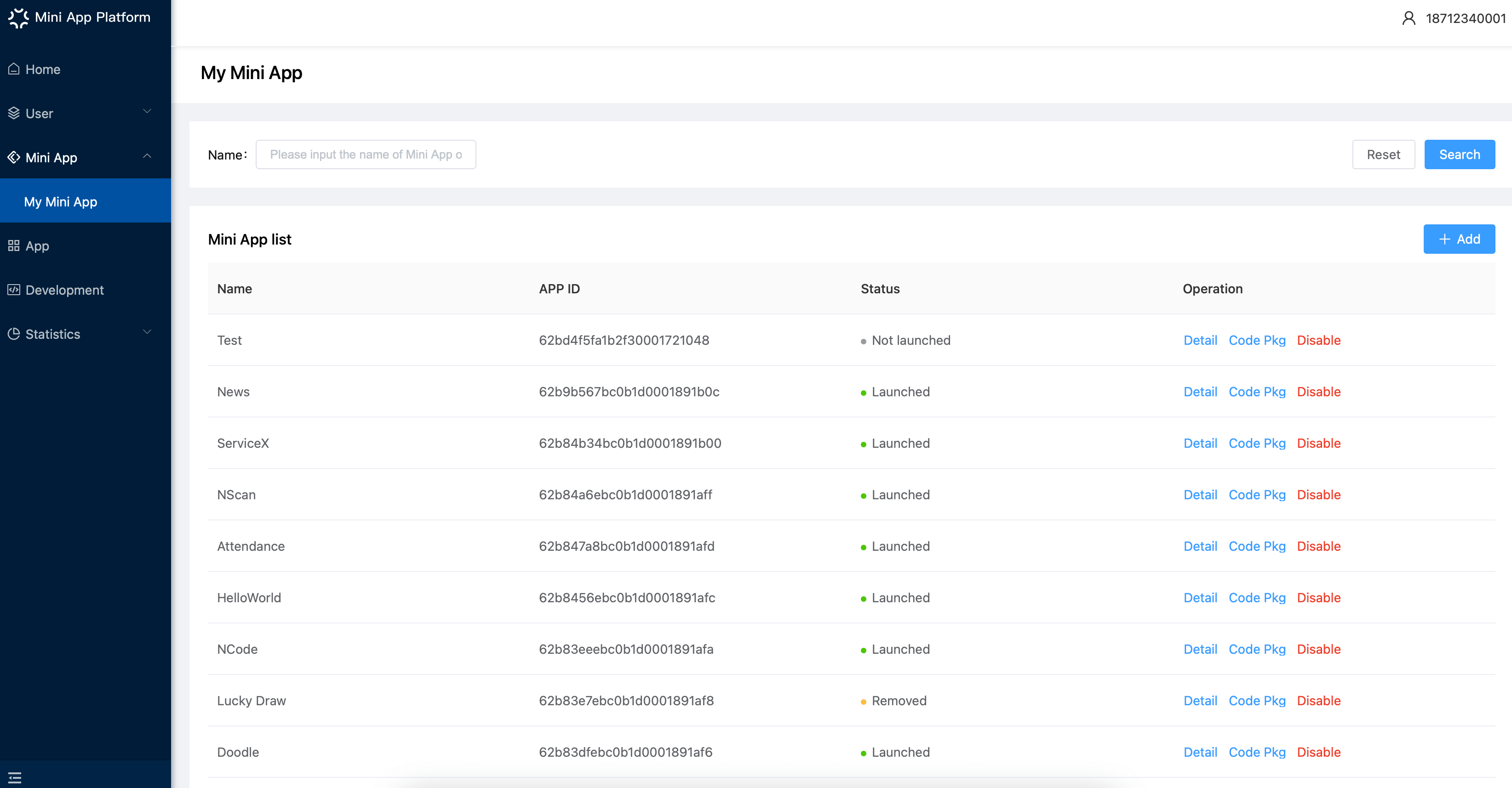
No.2 Click「Add」in 「Mini App-My Mini App」
When creating a Mini App, you need to add its information like the name, usage and introduction.
After creating a Mini App, you will see the user guide. Please read through it:
# Add more info
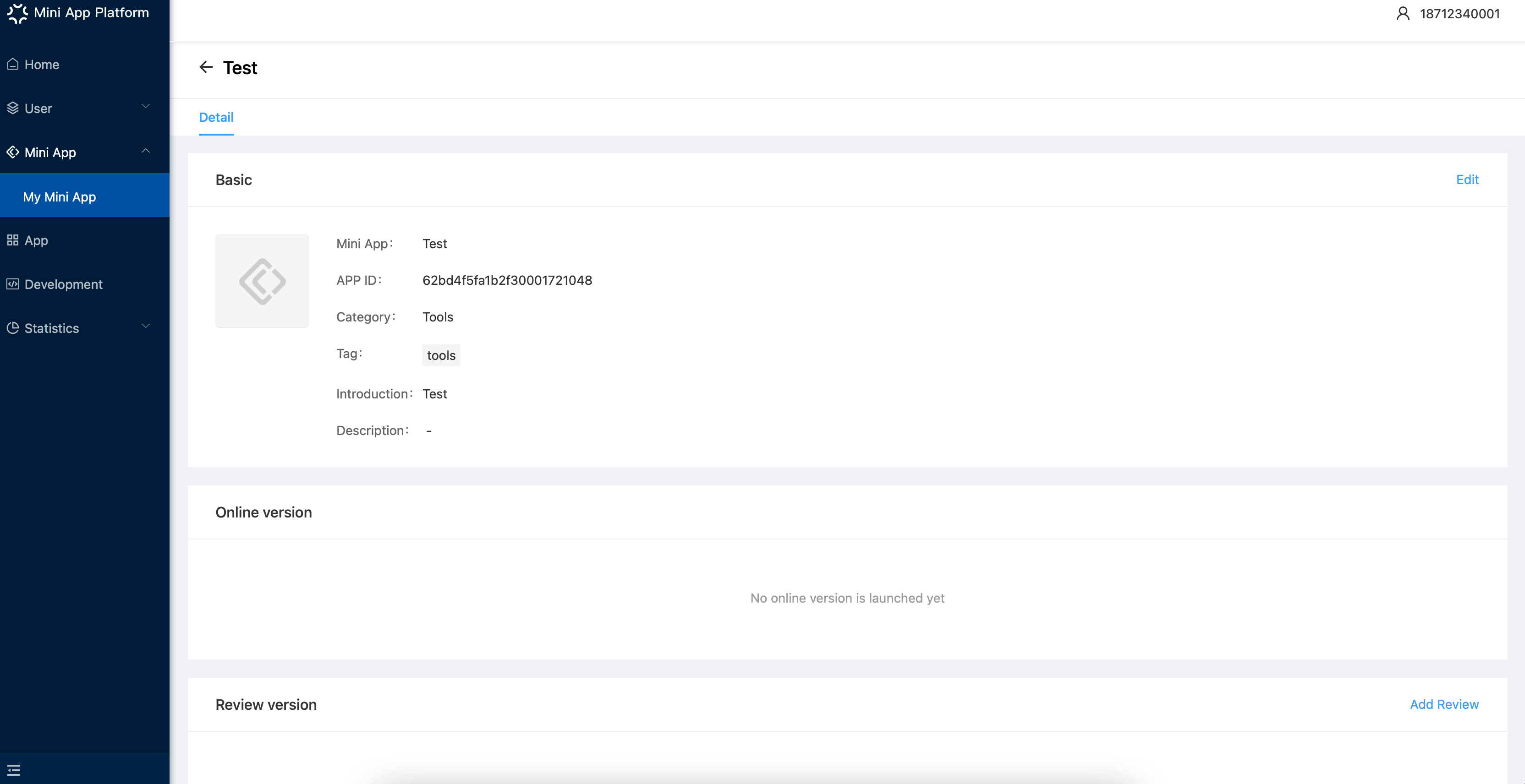
After Creating a Mini App, you can click 「Detail」to edit the basic information.
Basic information about Mini App includes: name, usage, introduction, profile and description. The info can be edited except App ID.
You can upload Code Pkg of Mini App. Check 「Develop Mini App-UploadCode Pkg」in the following part.
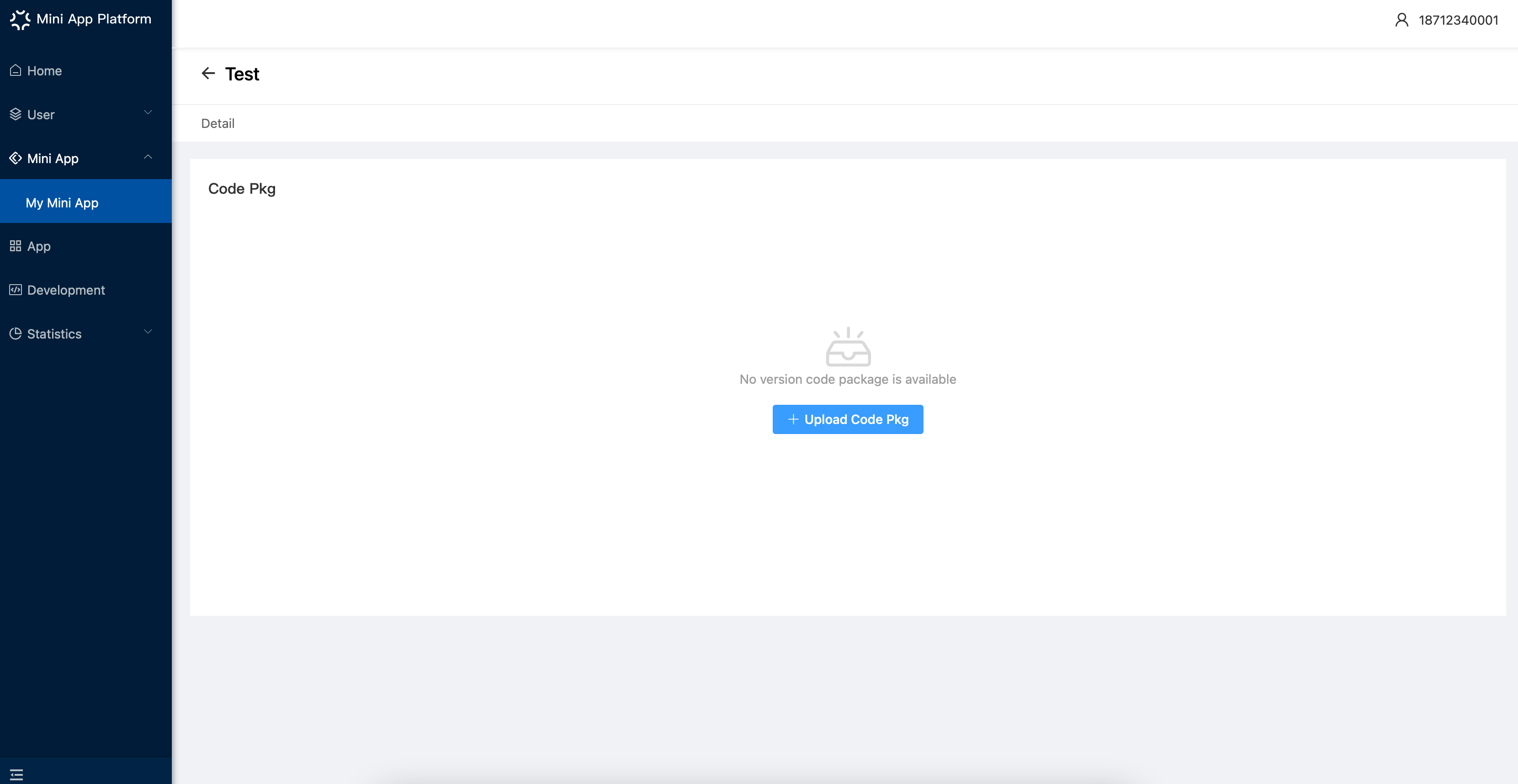
After editing the detailed information and uploading Code Pkg, you can submit the Mini App for reviewing.
# Check the Mini App created
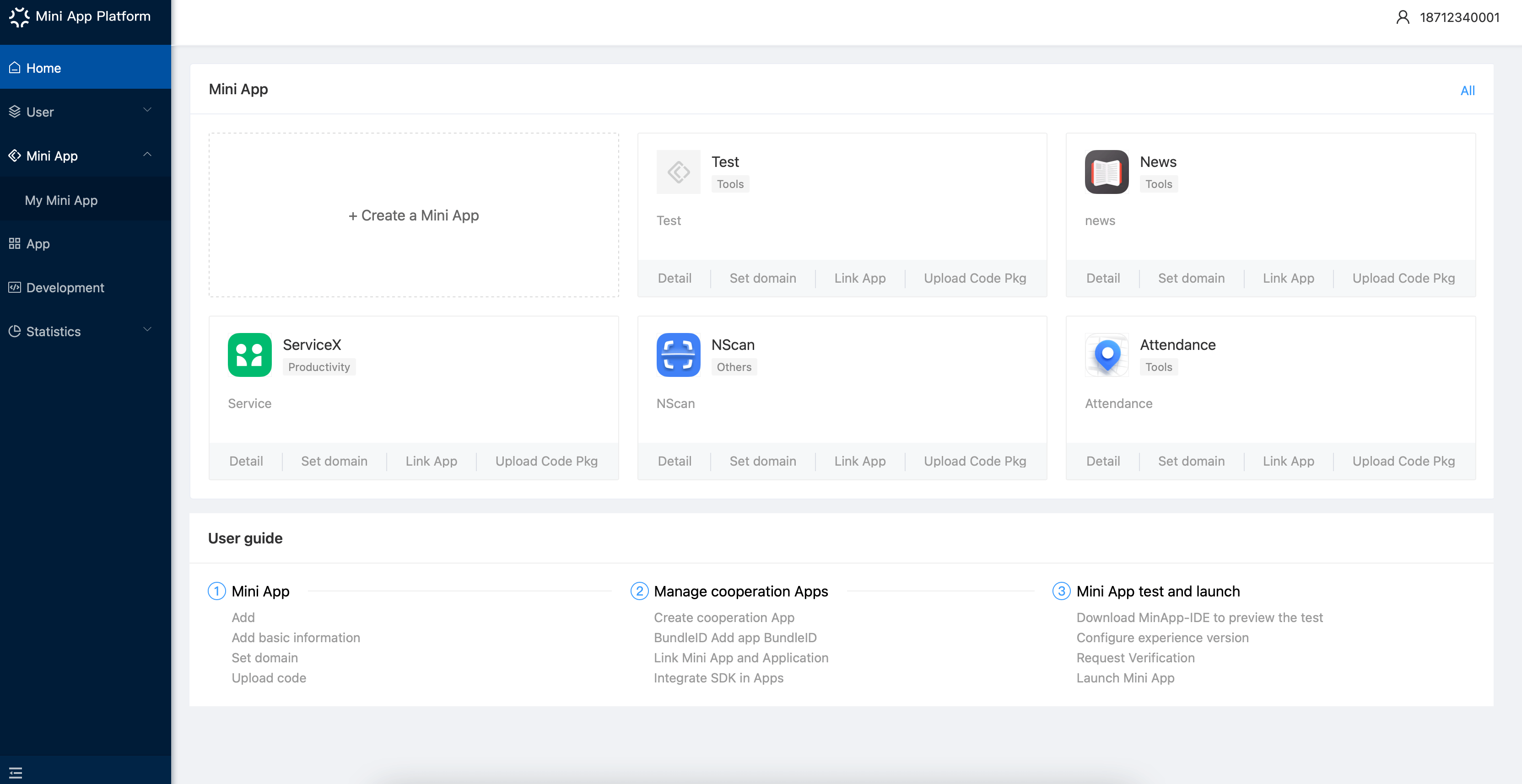
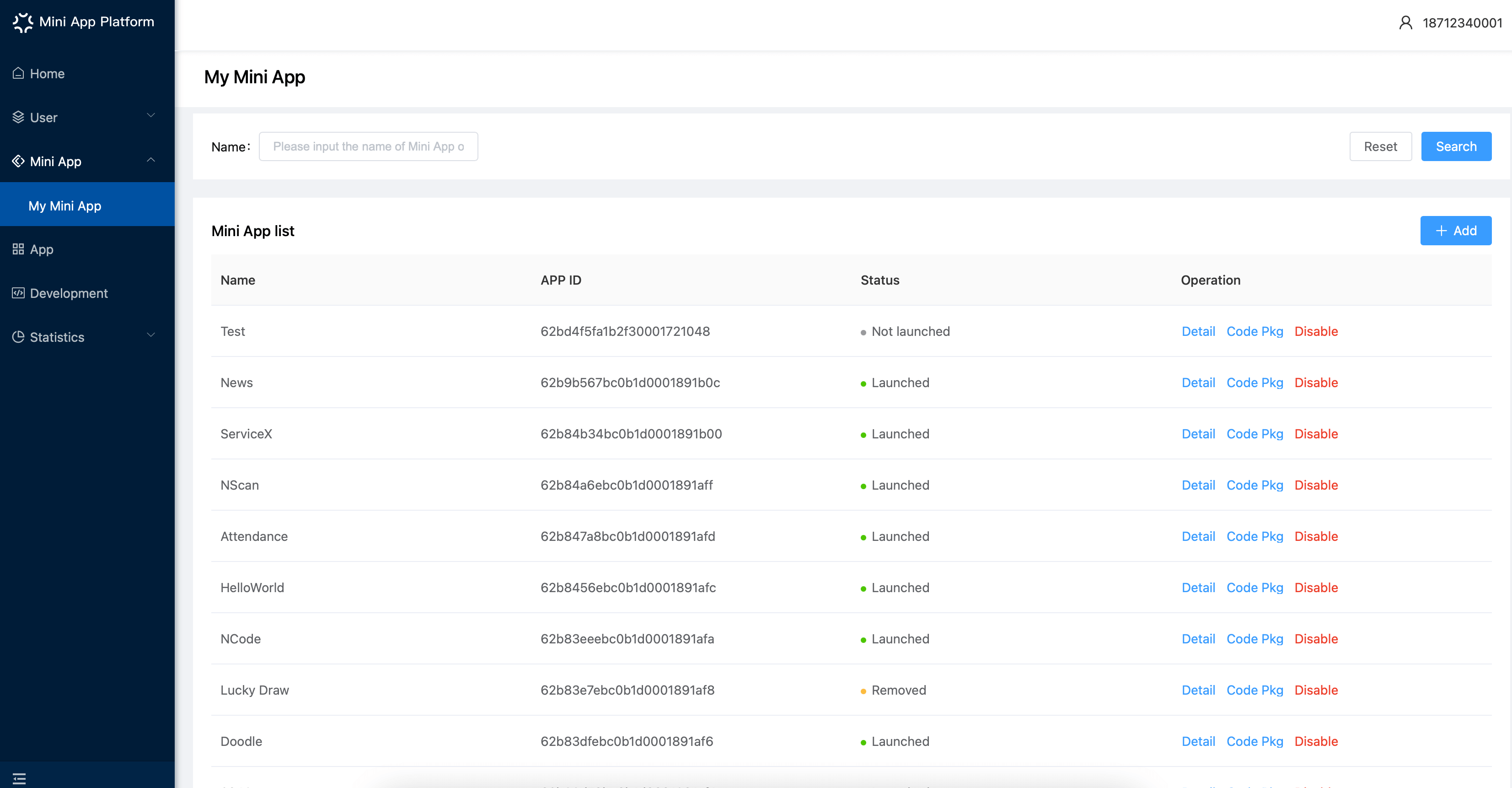
There are two ways to check the Mini Apps that have been created: home page; 「Mini App-My Mini App」
# Develop Mini App
# Submit Code Pkg
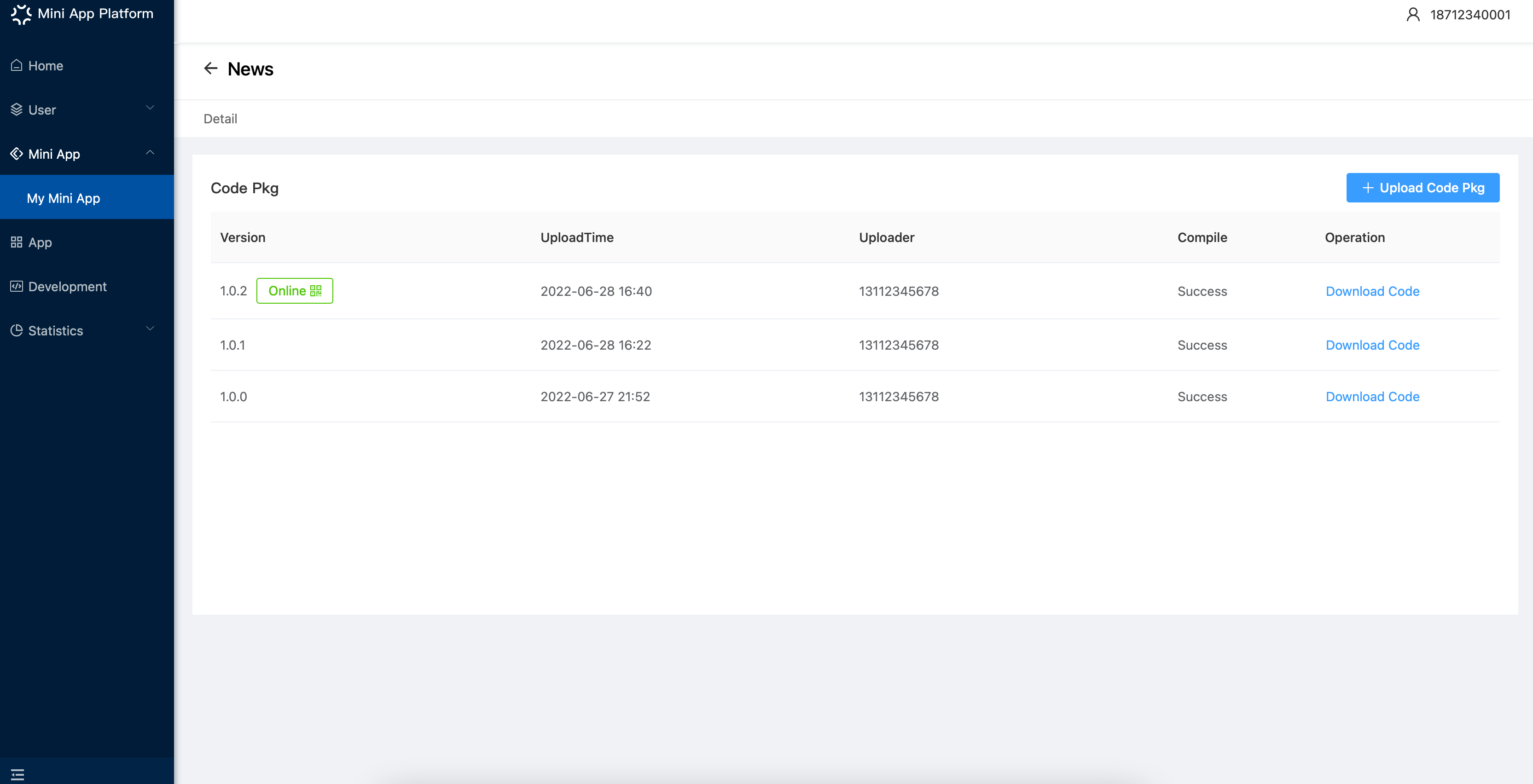
In SuperApp, you can upload Code Pkg and compile it from Cloud: In 「My Mini App」, click 「Code Pkg」 to upload code pkg of a Mini App. When uploading, you can choose whether to compile it from Cloud:
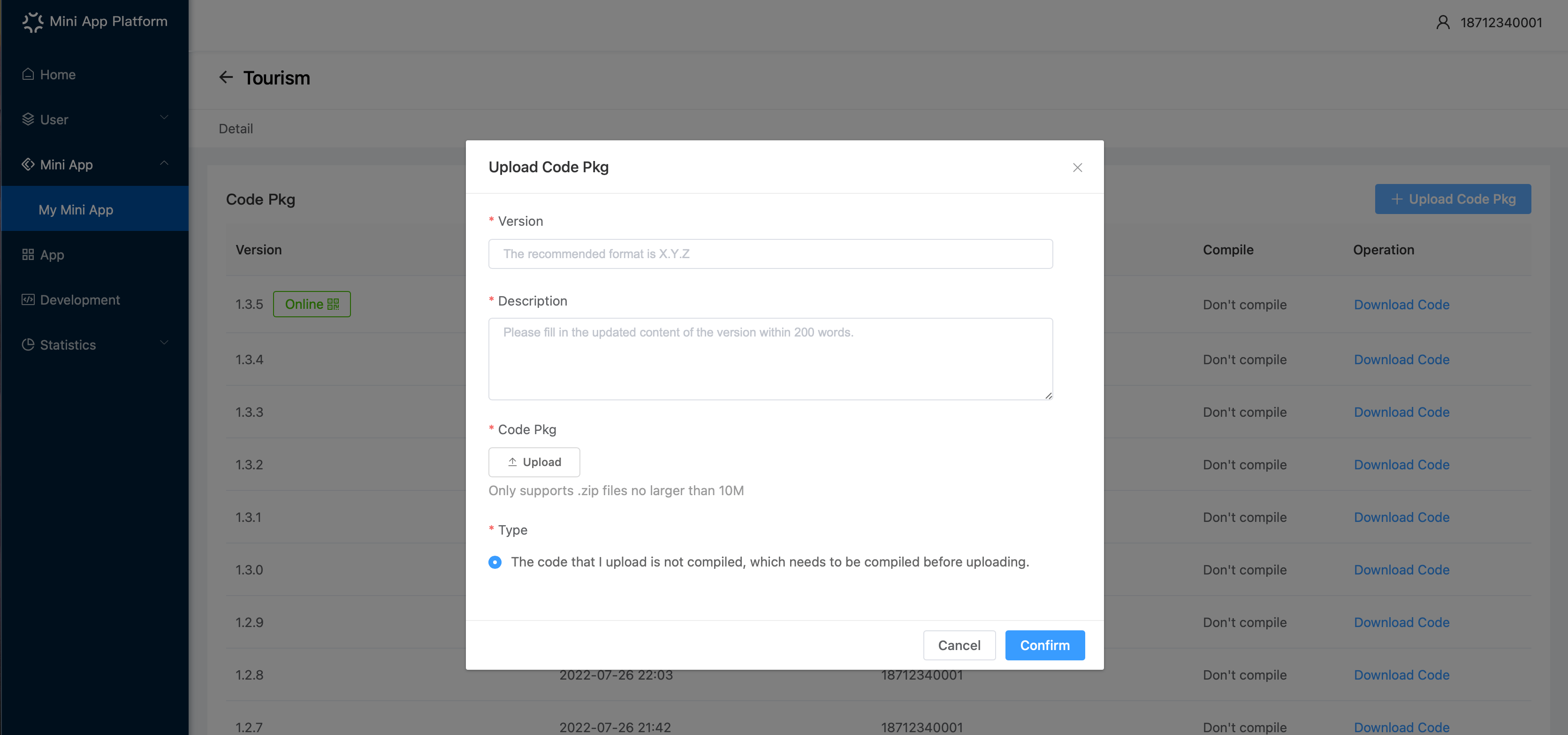
For the Mini App compiled, you can download the code pkg.
# Debug
You can set the Mini App as an experience version to debug
Debug with develop version
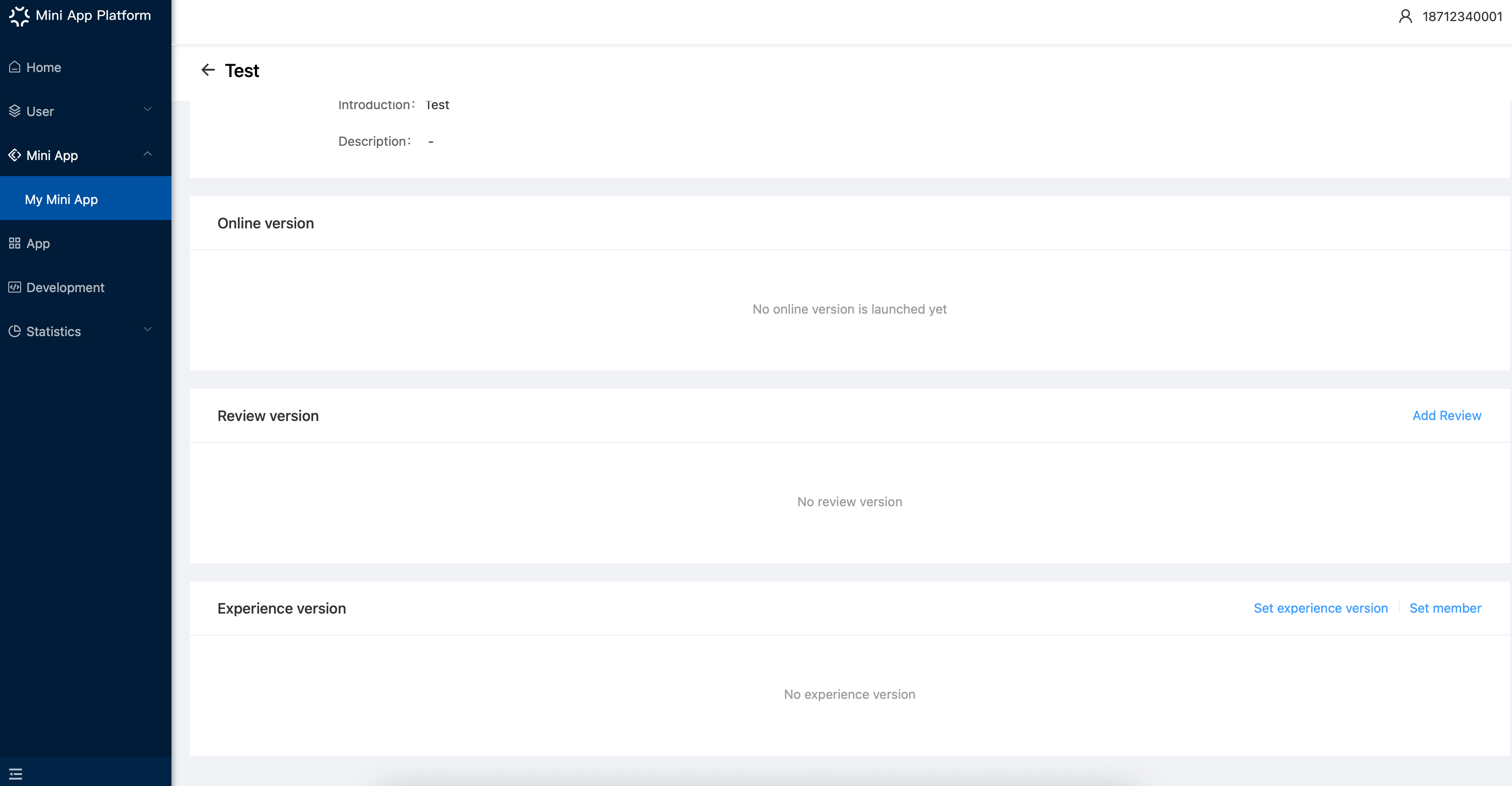
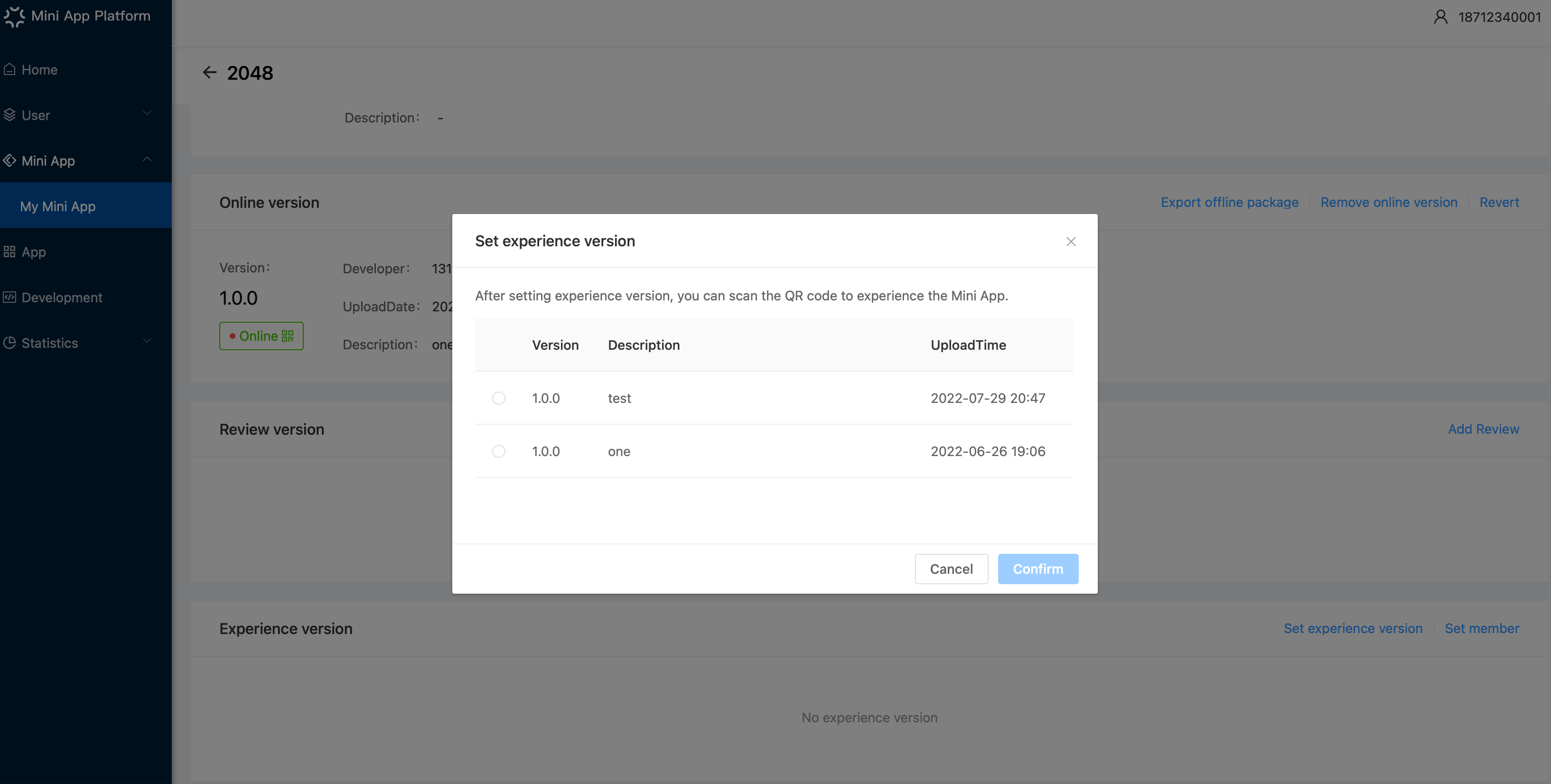
After uploading code pkg, you can click 「Detail」→「Set experience version」to set the Mini App to an experience version.
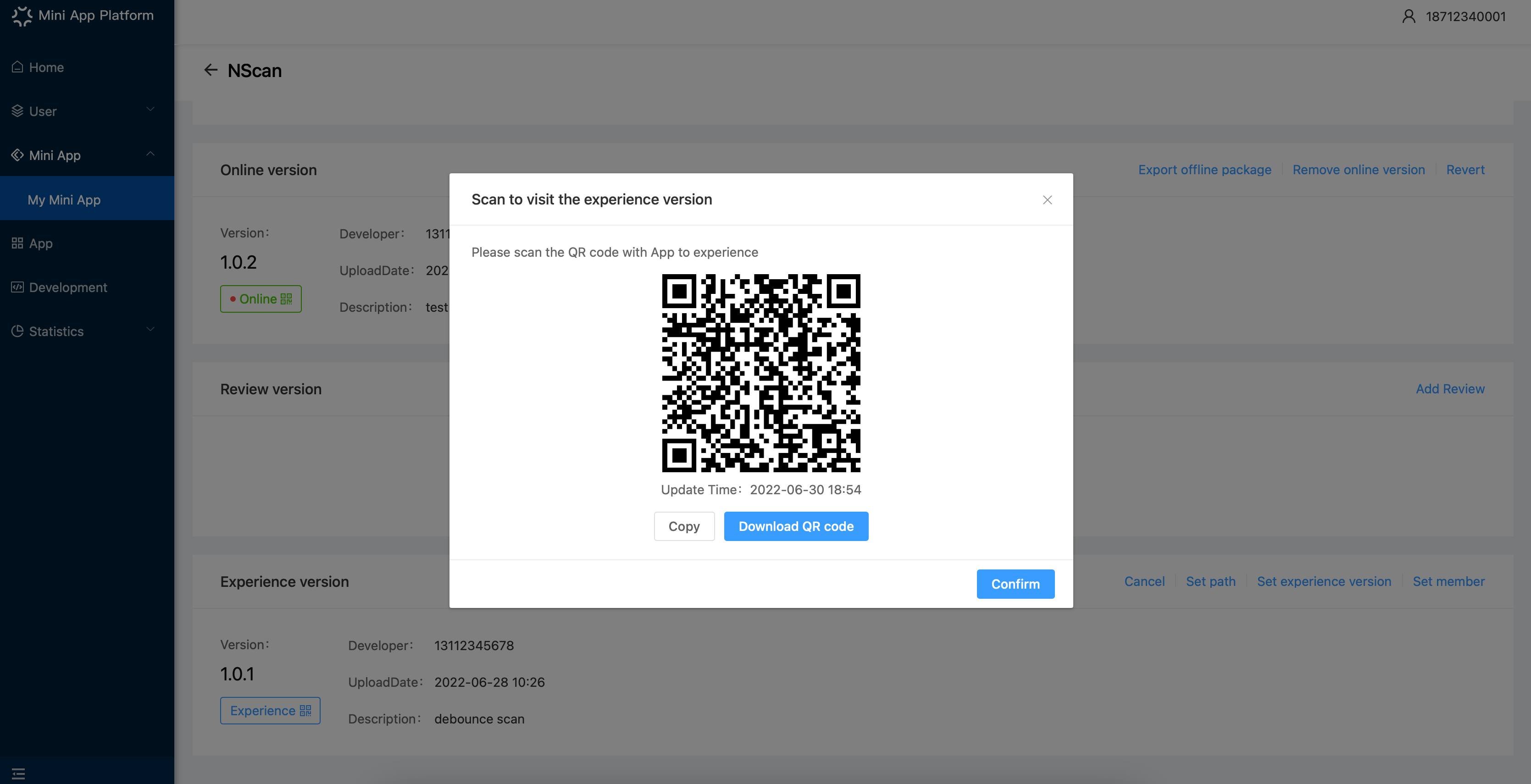
After configuring, you can scan the QR code of the experience version with SuperApp to preview and test.
# Review and launch
# Submit review request
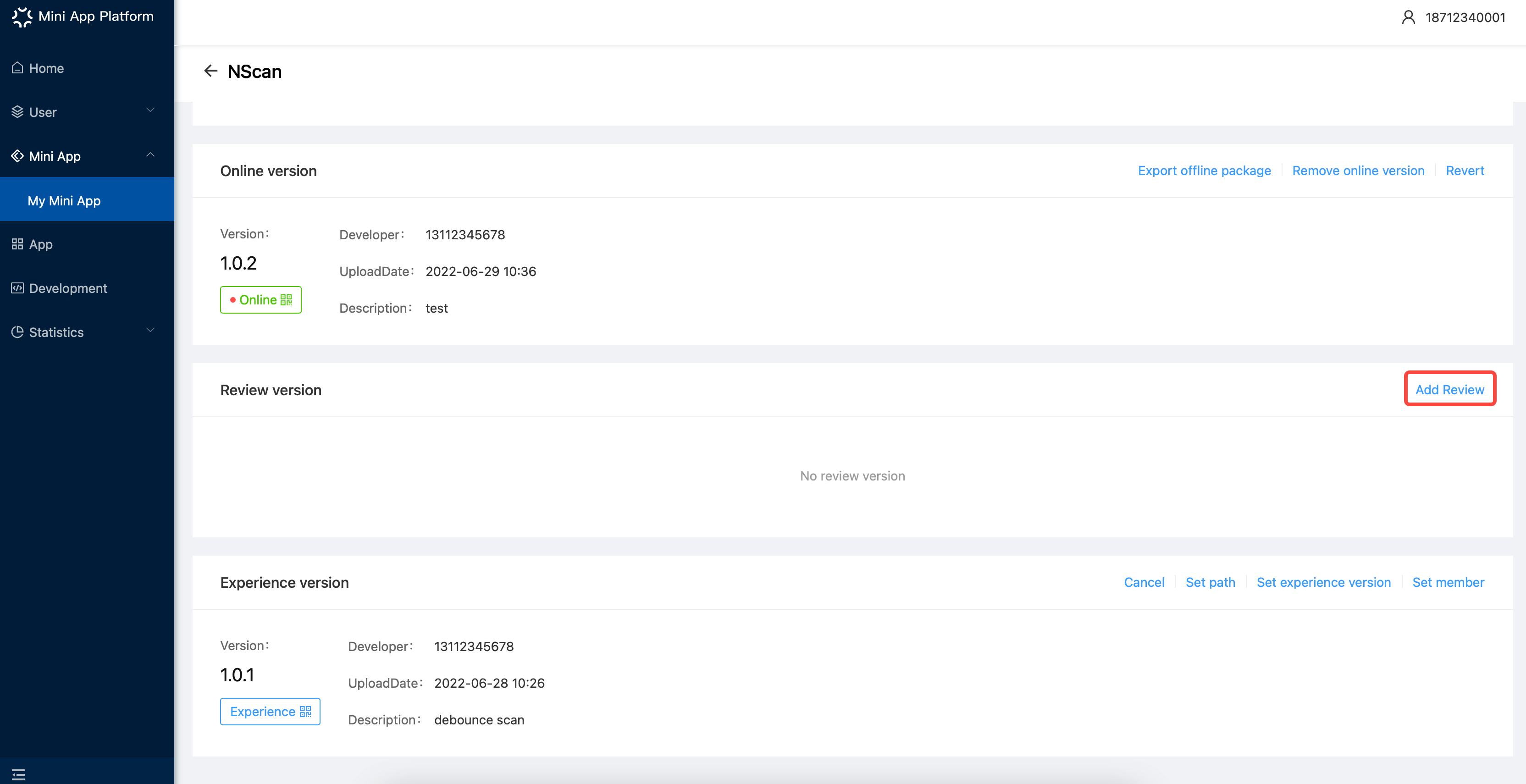
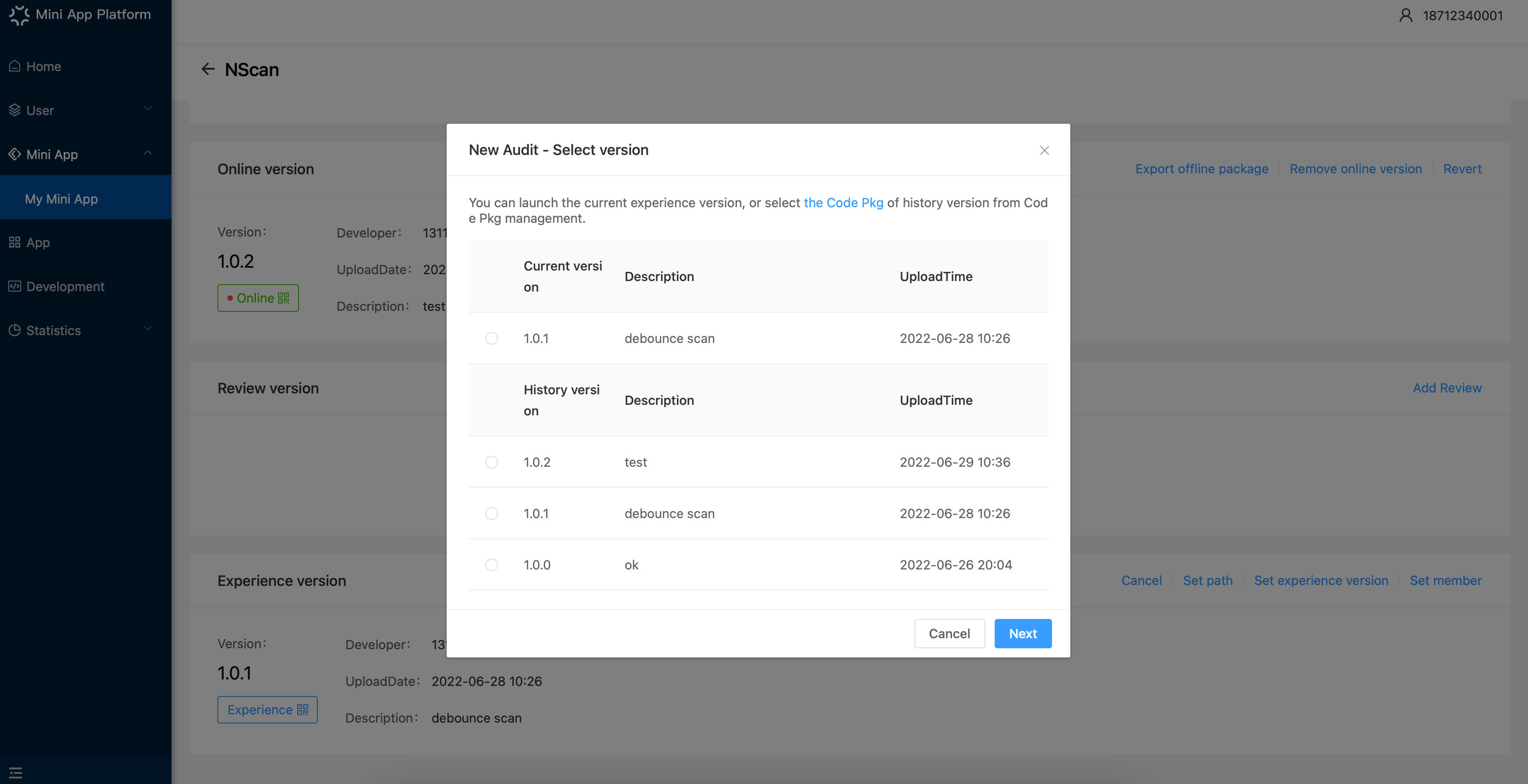
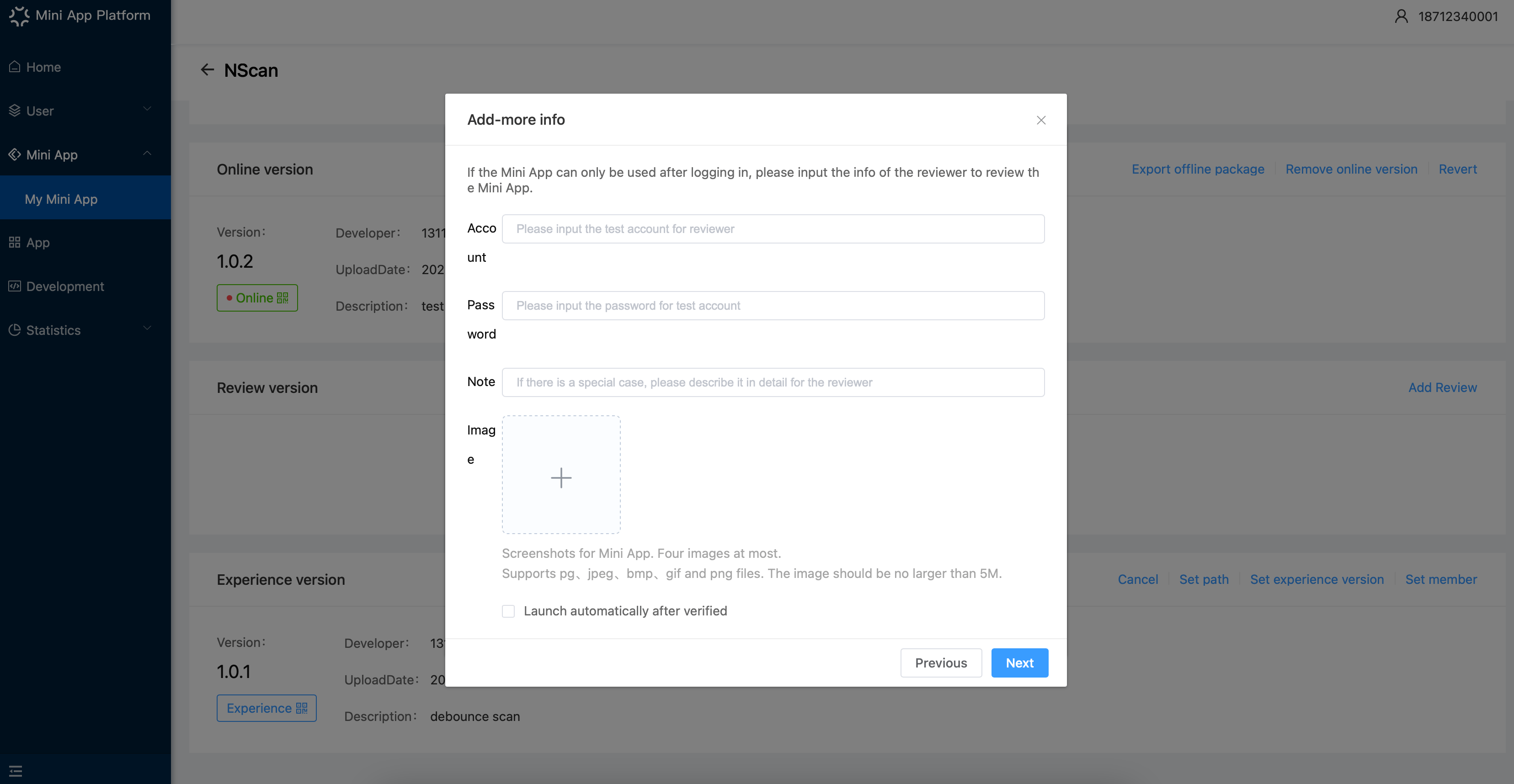
When the basic information, domain setting and code pkg upload are finished, you can submit it for reviewing and and some reviewing notes, then just wait for the result. The result can be checked from 「Notification」
# Launch and Remove Mini App
When the review is passed, you can launch the Mini App, then link it to cooperation Apps. Please note:
- Only one version can be under review at one time. If you want to submit a new one to review, please withdraw the old one;
- In 「History」, you can withdraw the Mini App under review. 「WIthdraw」is valid the time you set it;
- You can launch all the versions that passed review. Therefore, you can have more than one version of Mini App waiting to be launched.
- You can remove the current version of Mini App, and the 「Remove」operation is valid the time you set it. After removing one version, you can still submit a new version for reviewing.
# Gray release
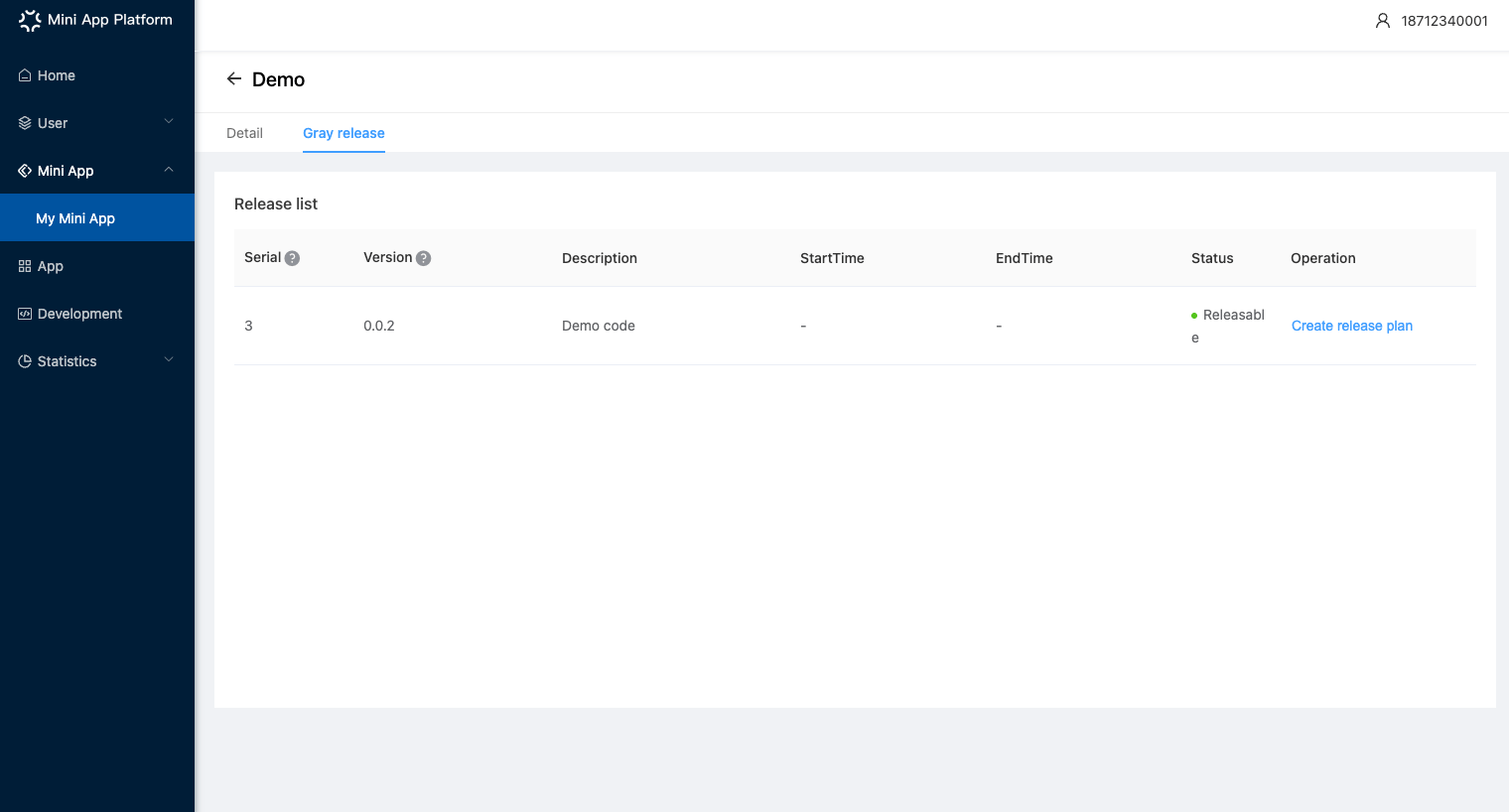
You can set gray release plan according to different versions of Mini App. Users can open the corresponding version of Mini App according to their own tags.
The rule of Gray release needs to be set in 「Mini App-Rule」. Here you can add corresponding rules info. In SuperApp, there are already some rules provided for you such as location info (TROJENA, OXAGON and THE LINE), network(2G, 3G,4G,5G and WiFi), running version (iOS and Android) and base library version.
# Bind mobile apps
# SDK KEY
After creating an app and adding Bundle ID, you can click 「Copy」here to export the SDK KEY and SDK SECRET, then press ctrl+v or command+v to paste it elsewhere.
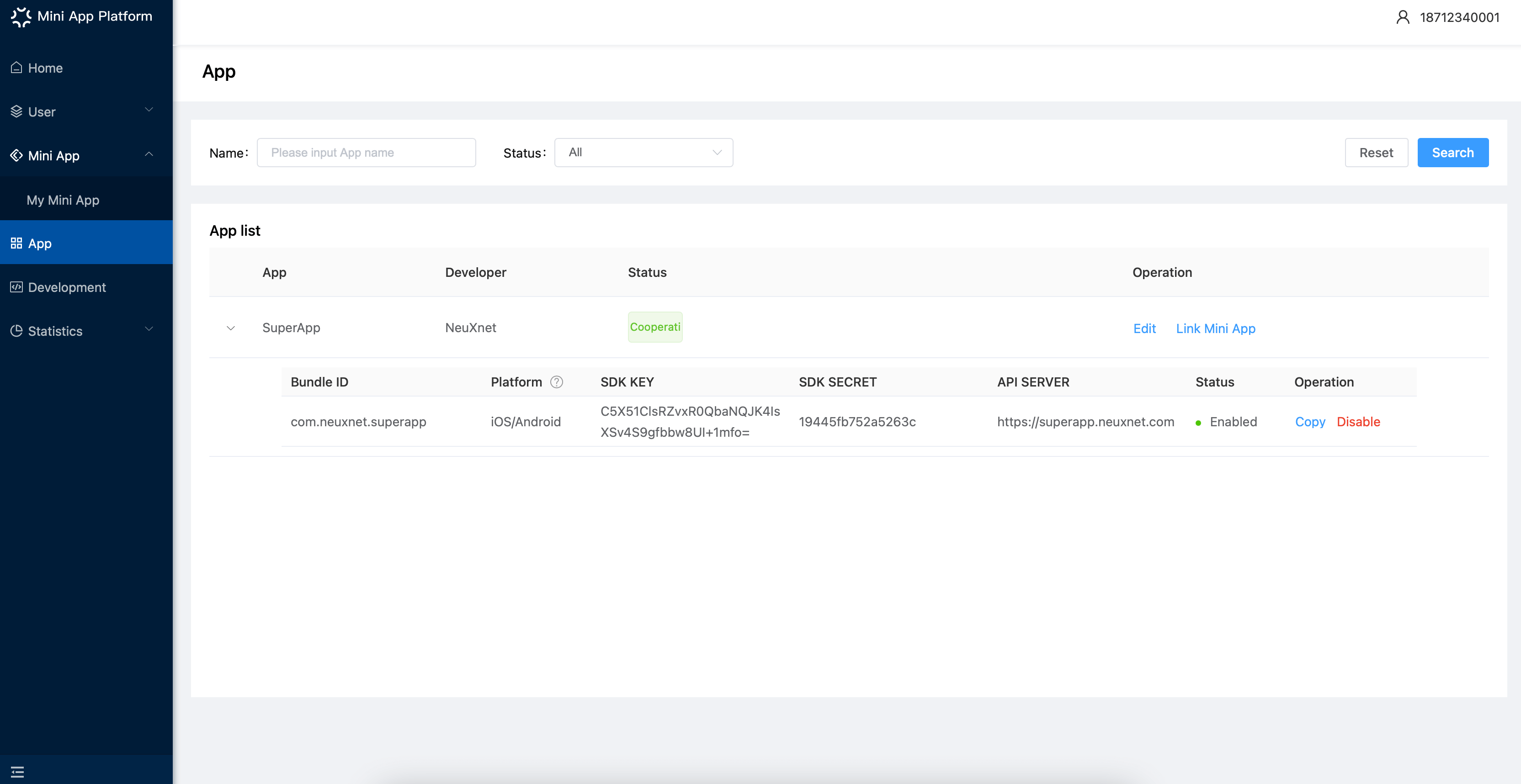
In order to visit the Mini App, the cooperation App of the third party must add corresponding SDK KEY and SDK SECRET while running their own Mini Apps. Please note:
- Cooperation App must integrate the SDK of SuperApp and add corresponding SDK KEY and SDK SECRET;
- You need to link the Mini App to be launched with cooperation app so that you can open the Mini App
- Mini App Platform will check whether the SDK KEY, Bundle ID and Mini App are linked. If there is no link, then the Mini App will not be found.
# Bind Mini App
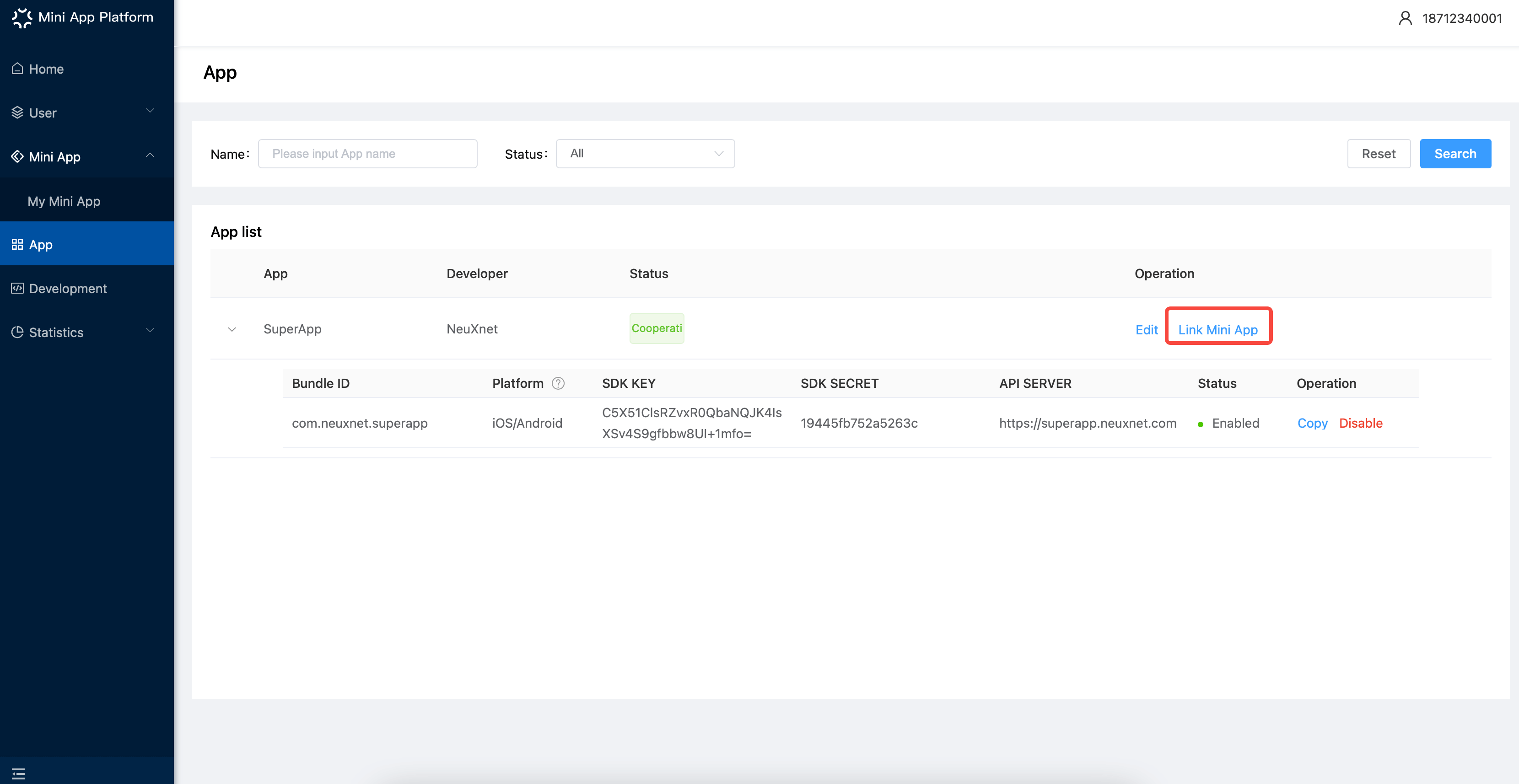
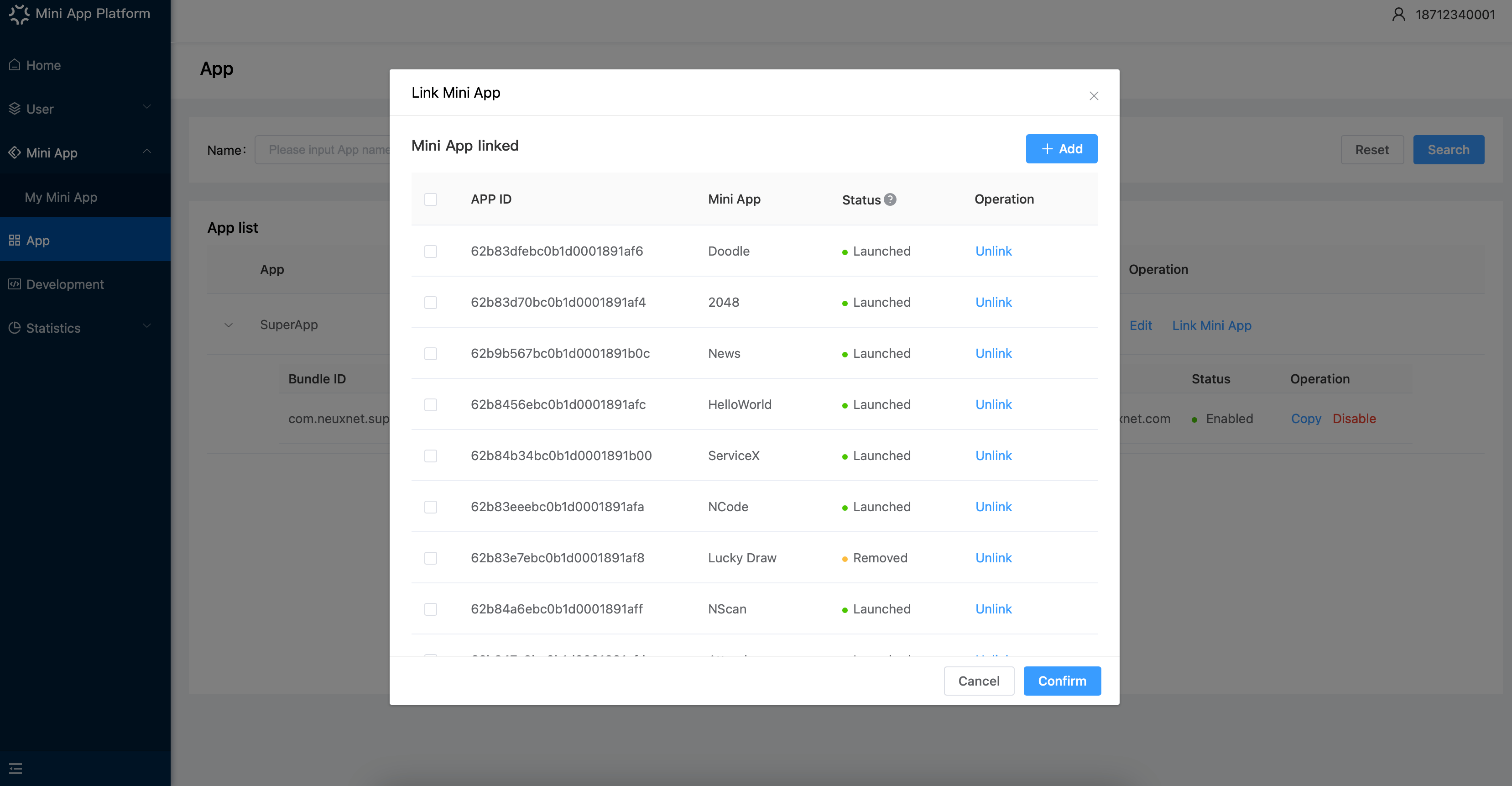
(1)To open a Mini App in Application, you need to make sure that the Mini App and the Application is linked. Here to link Mini App that are launched: 「App」→「Bind Mini App」→「Add」
(2)After selecting Mini App, the cooperation App of the third party need to add a Mini App entrance in the App for users to access.
(3) For independent users, after purchasing, you can set a review process: developer links a Mini App and waits for operators to review, and if it's rejected, the Mini App cannot be opened in the corresponding App.
# Unbind Mini App
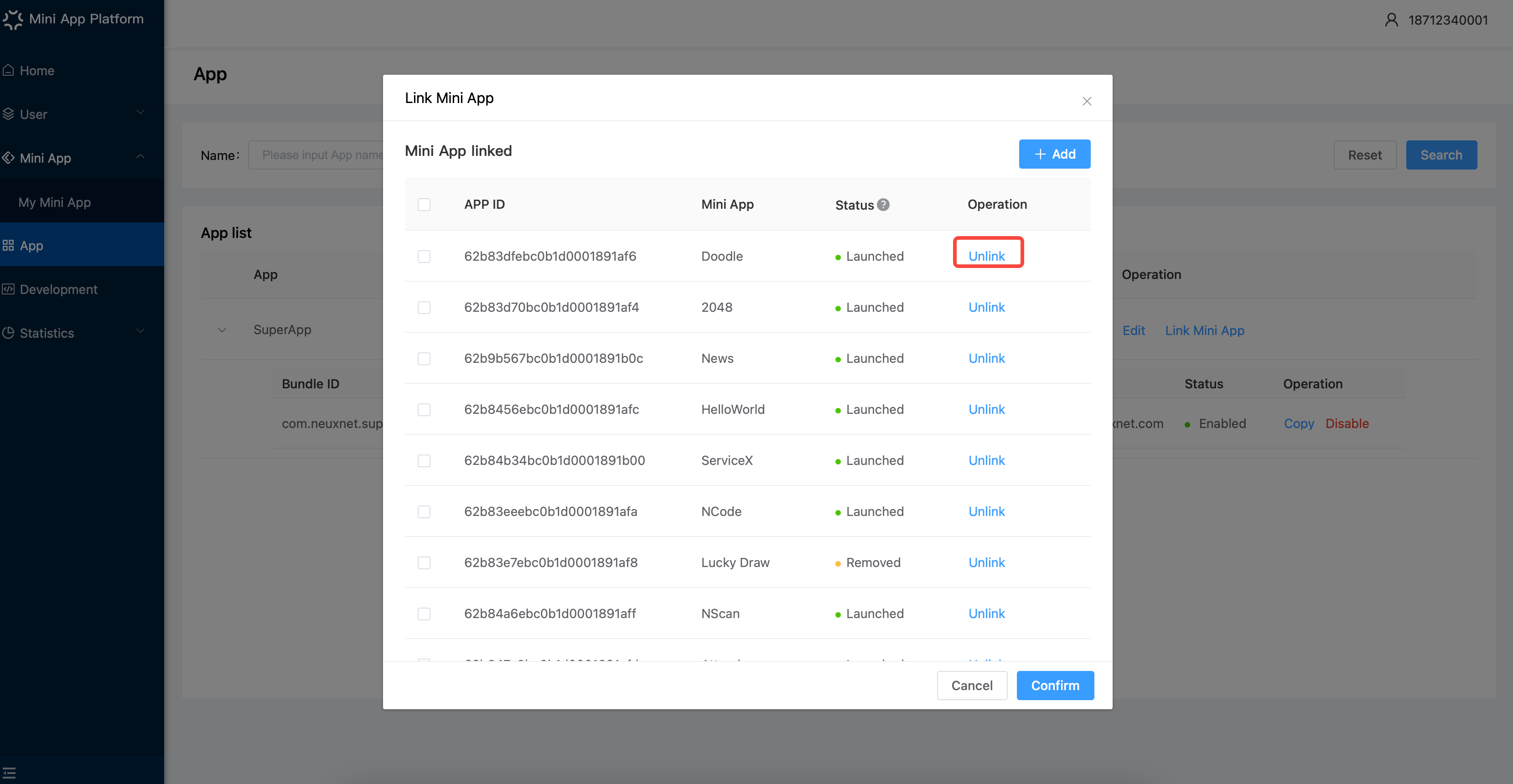
After binding Mini App, you can unbind Application s and MIni App. Just click the 「Bind Mini App」and select the Mini App you are going to unbind.
After unbinding, you will see "Stopped" when trying to open the Mini App.
# Domain
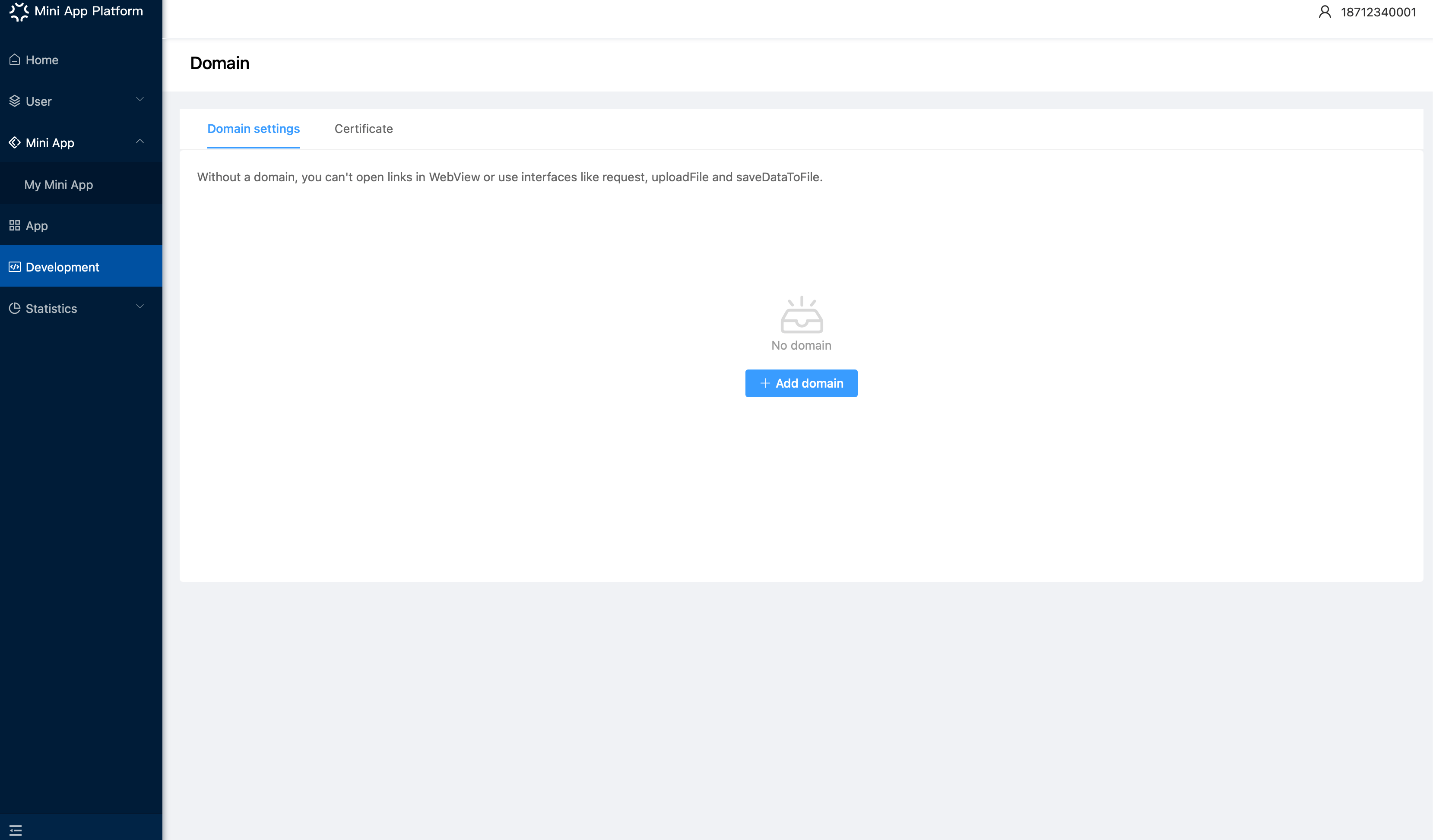
You need to set domain before visiting the server. Here to set domain:「Development」→「Domain setting」. Please input the full address, for example, https://example.com/page1.html (opens new window)
# User Management
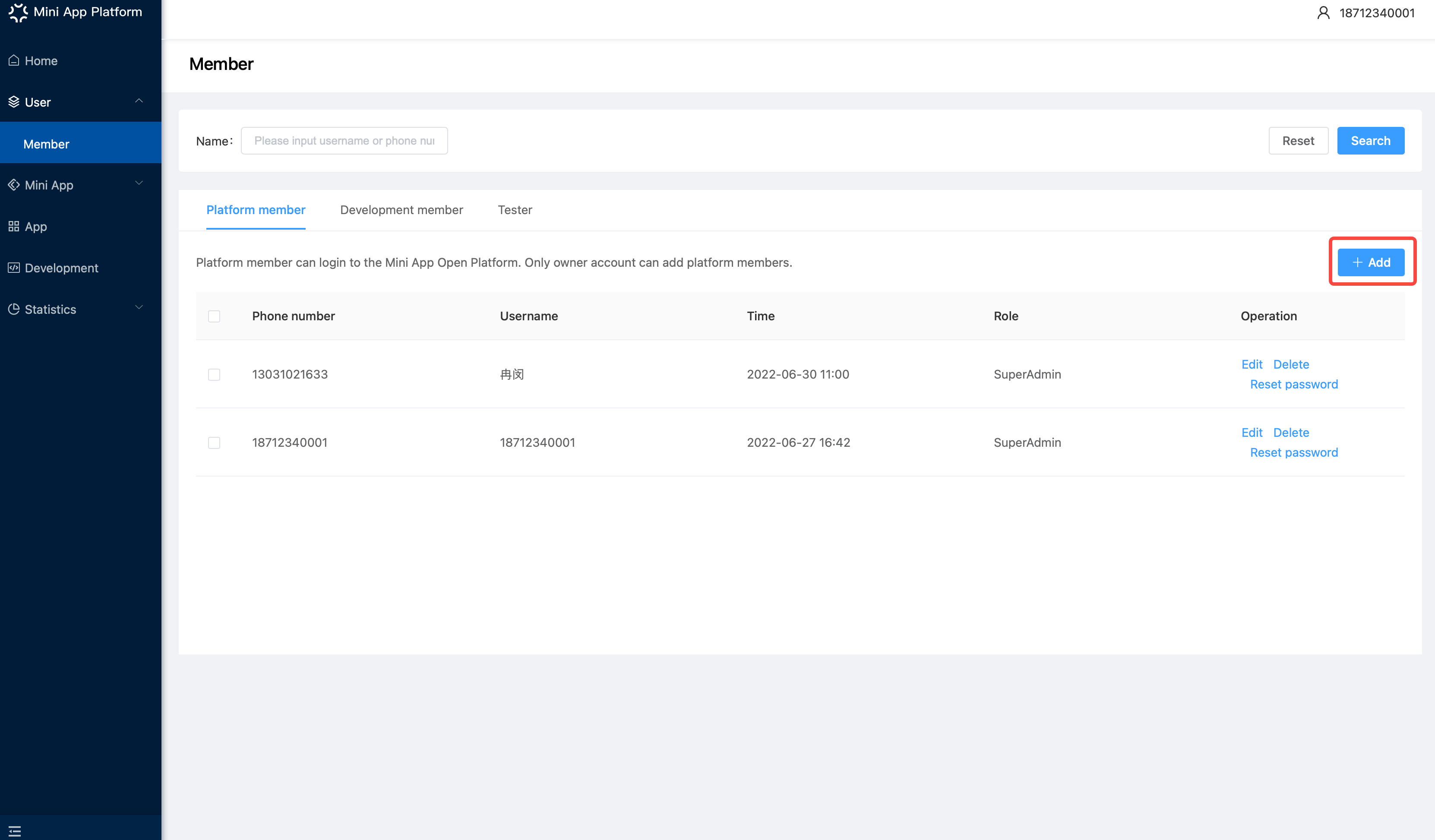
In「Member-Platform member」, you can click 「add」 to add platform members.
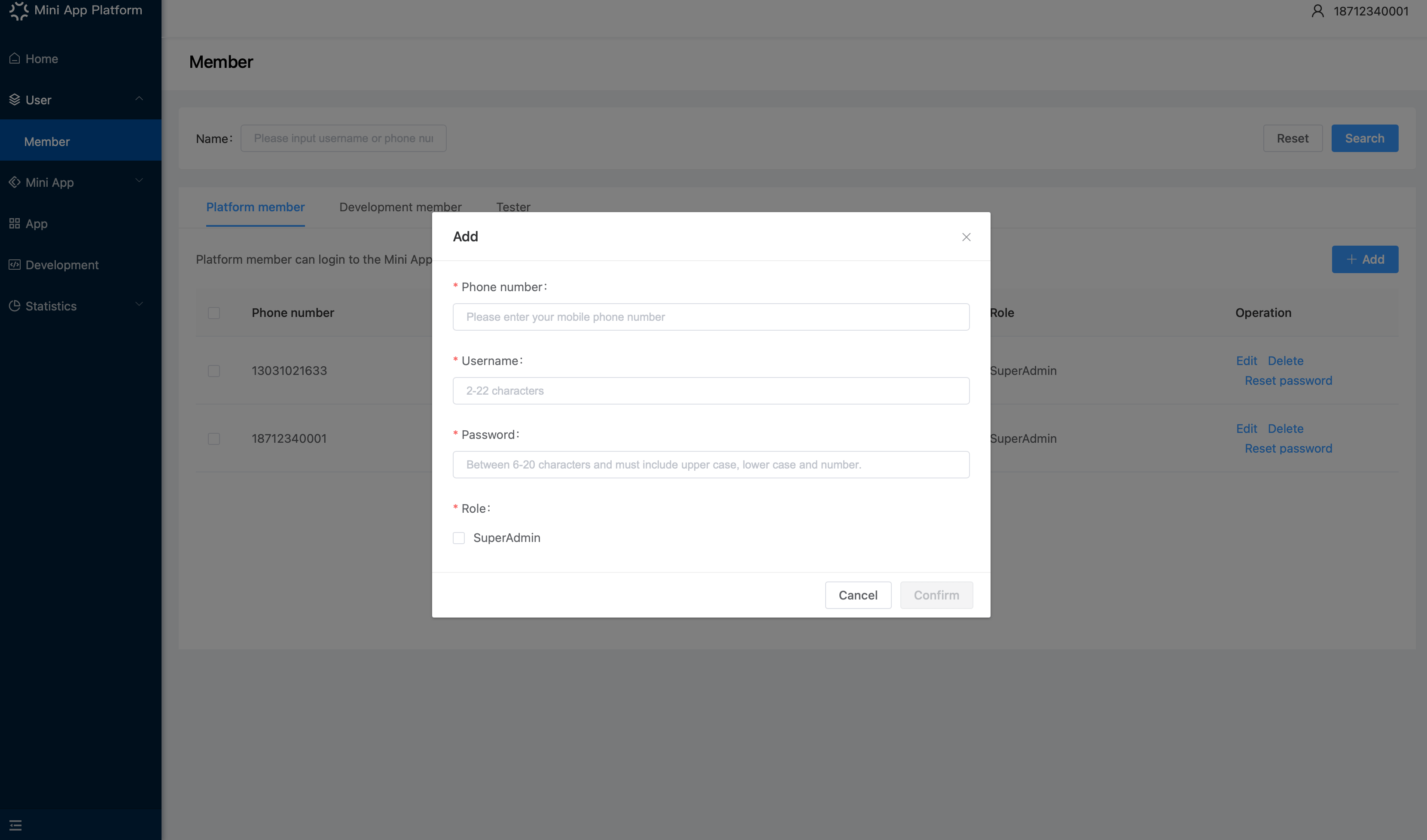
Note:Account that is not registered cannot add platform member
There are three kinds of members: platform member, development member and tester.
- Platform member: Platform members are members with accounts and they can login and use Mini App Platform.
- Development member: The member imported to the platform and set as development member. They can open the Mini App of development version and experience version.
- Tester: The member imported to the platform and set as testers.
When adding development members and testers, you can follow the guide:
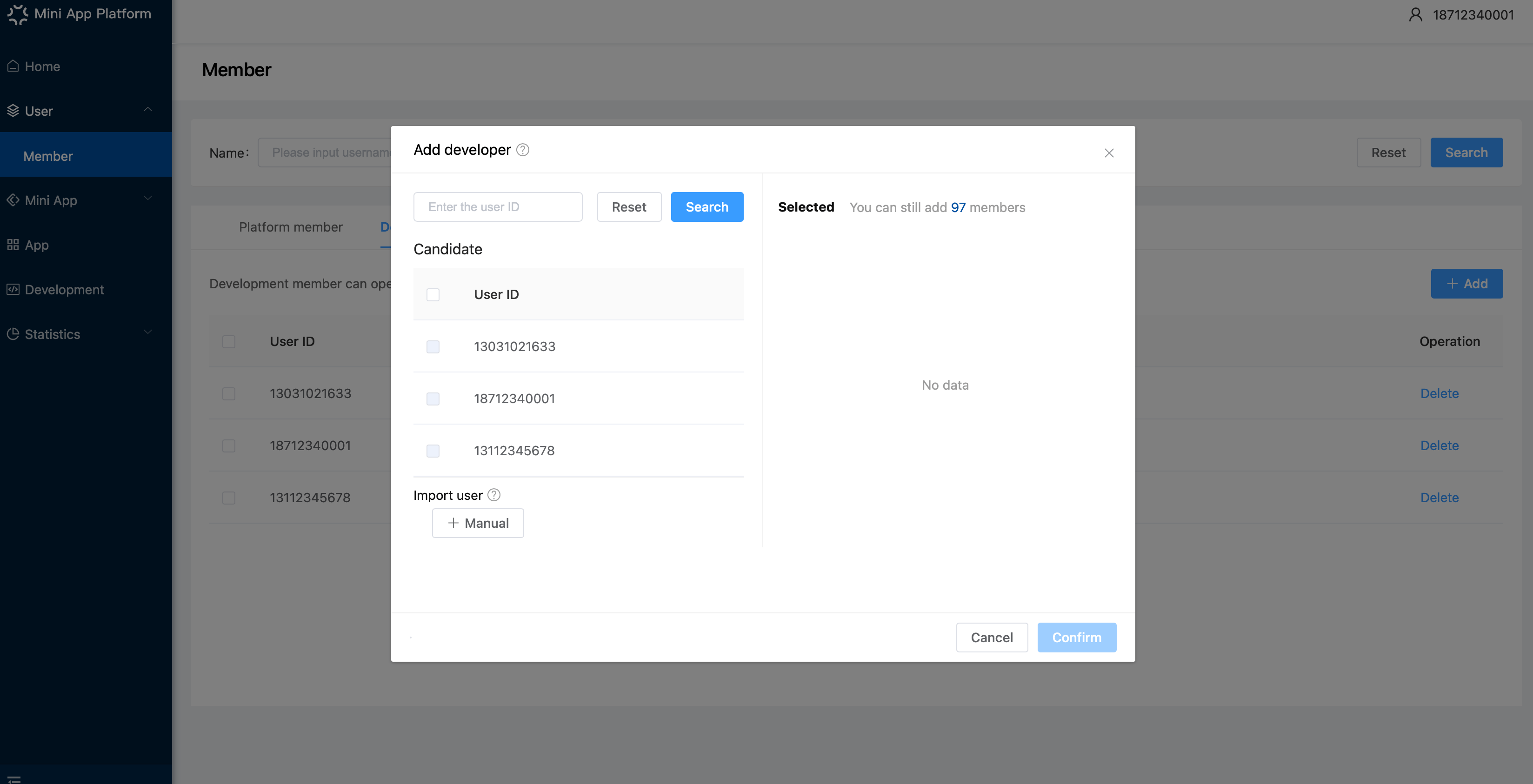
Developer account can add 100 development members and 100 testers at most, while personal account can add 15 development members and 15 testers. The setting of members is available for all Mini Apps in the account.
# Statistics
You can check 「Statistics」for detailed data. Here is the overall data:
| Data | Description |
|---|---|
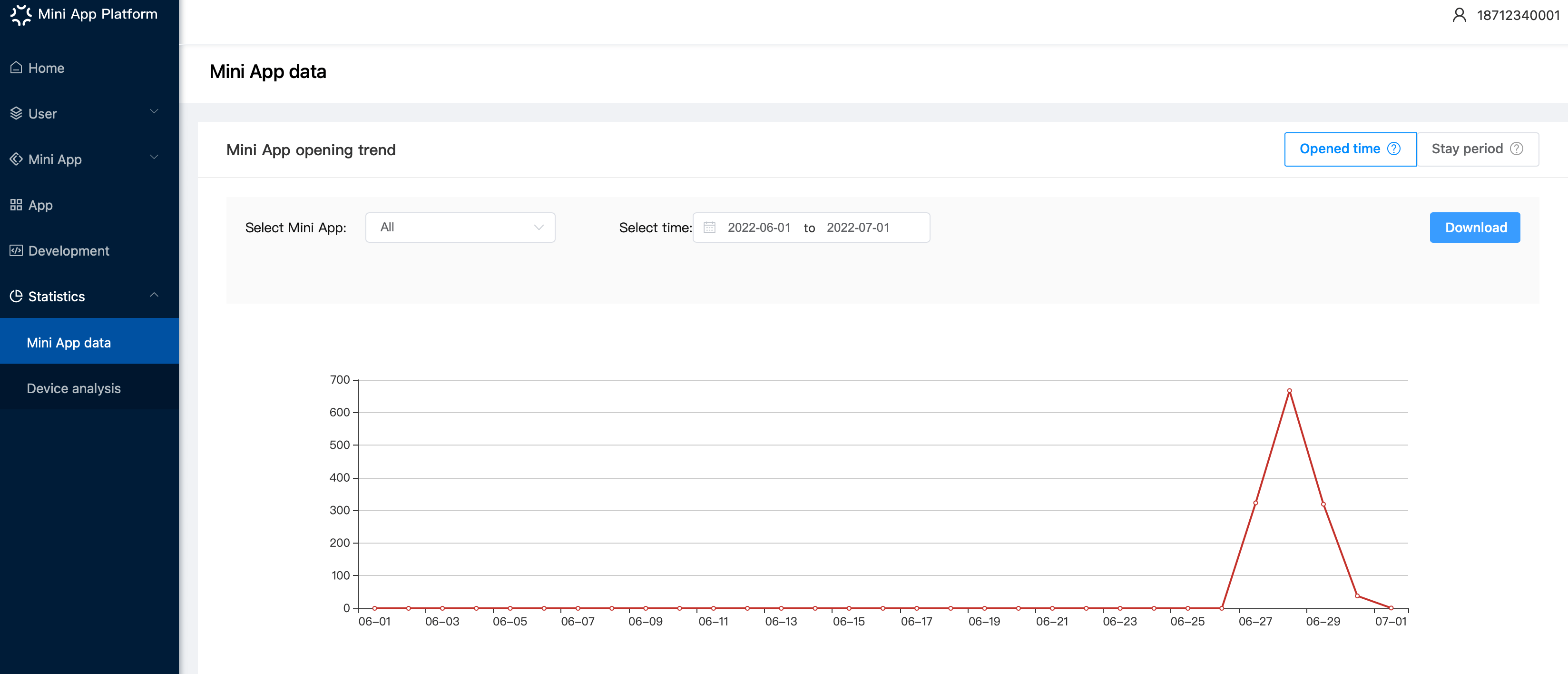
| Opening trend of Mini Apps | The opened time of selected Mini App in a certain time period. Opened time: The time that a Mini App is opened. One click means one time. Time period: 0:00 ~ 25:59 (UTC+8) everyday |
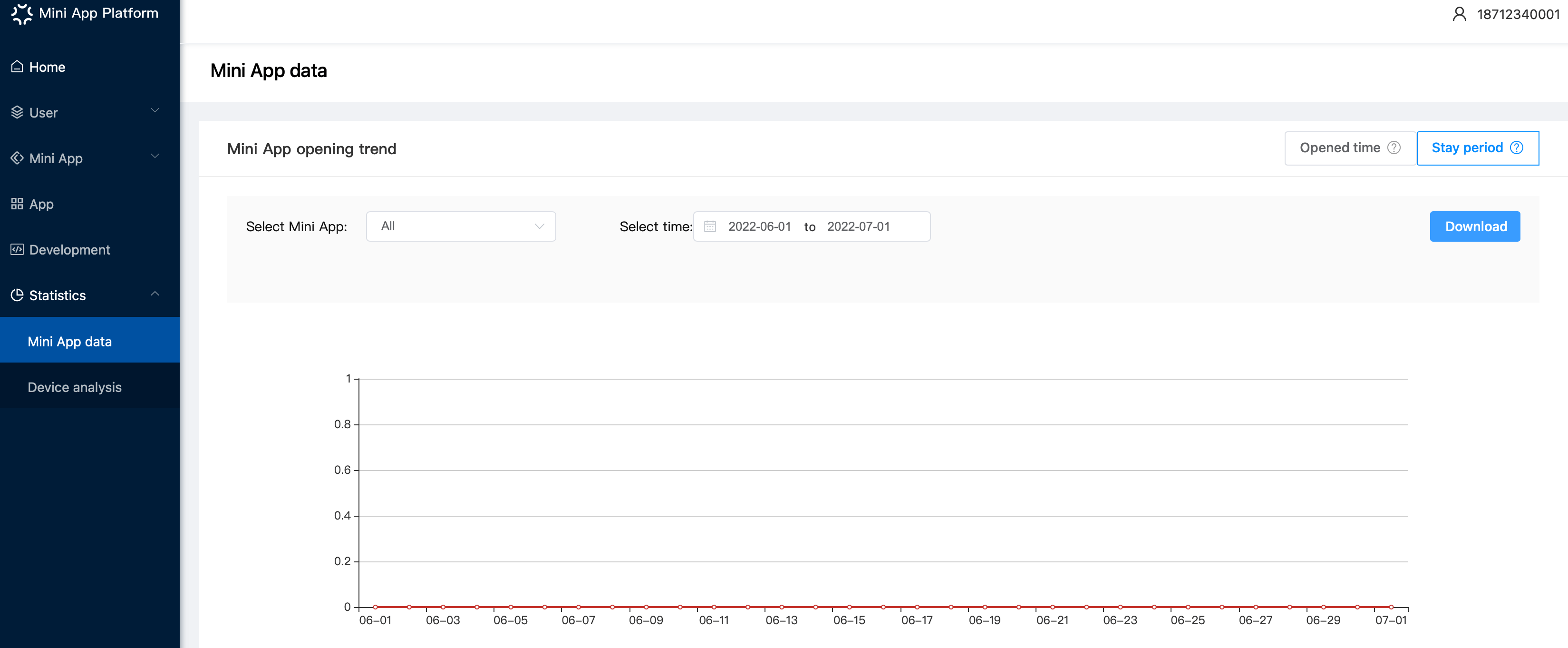
| Stay period | Average visit period (per time) of selected Mini App in certain Apps during a time period Average visit period (per time): The average visit time period of all devices that have opened the Mini App.(Total stay time/opened time) Time: 0:00 ~ 23:59 (UTC+8) everyday |
| Number of device | It depends on the system. The ID of Android users is in accordance with the system, while the ID of iOS users is in accordance with what the SDK gives. |
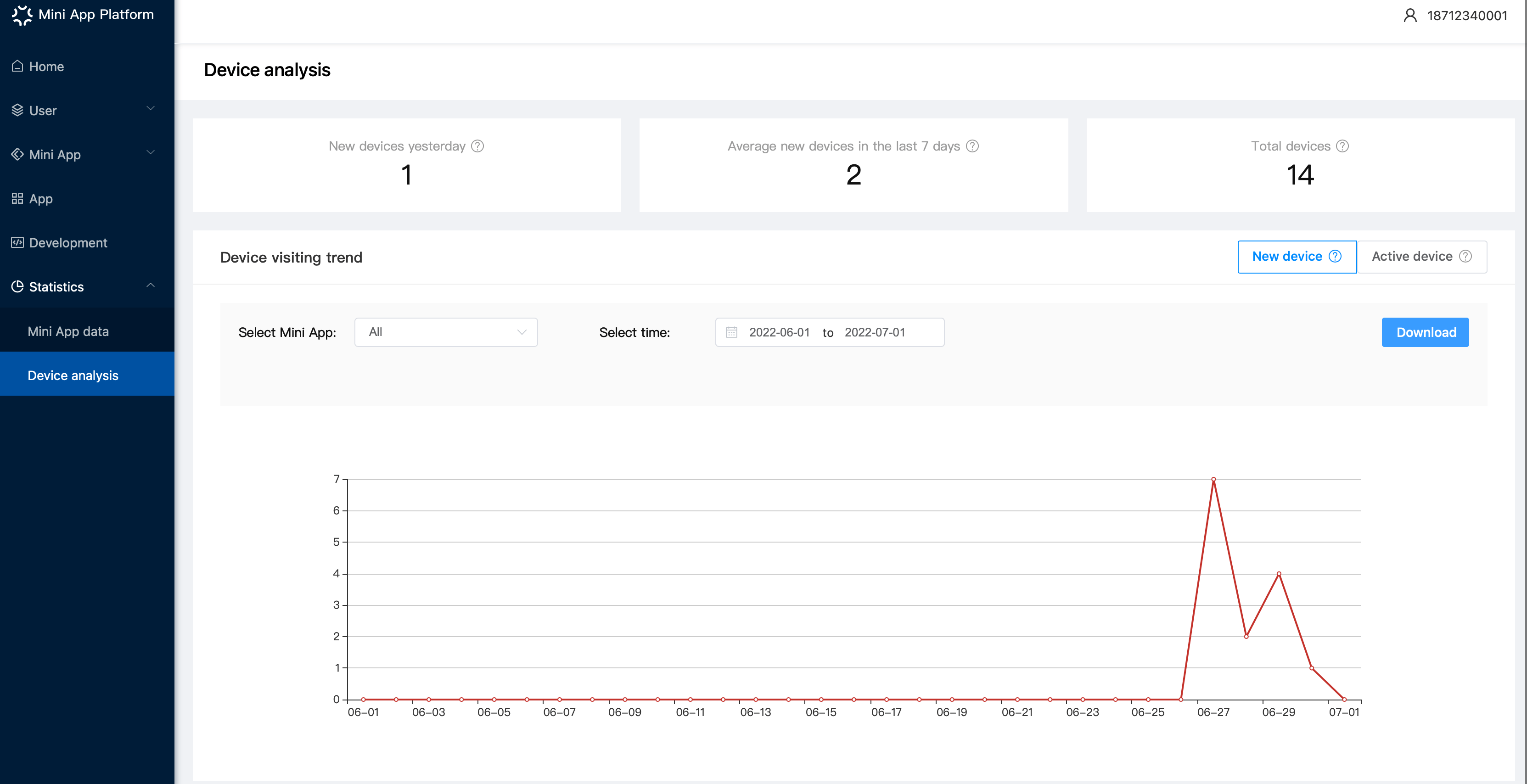
| New device | New device for the selected Mini App in certain apps during a time period New device: The device that opened a certain Mini App in an App for the first time Time: 0:00 ~ 23:59 (UTC+8) (everyday) |
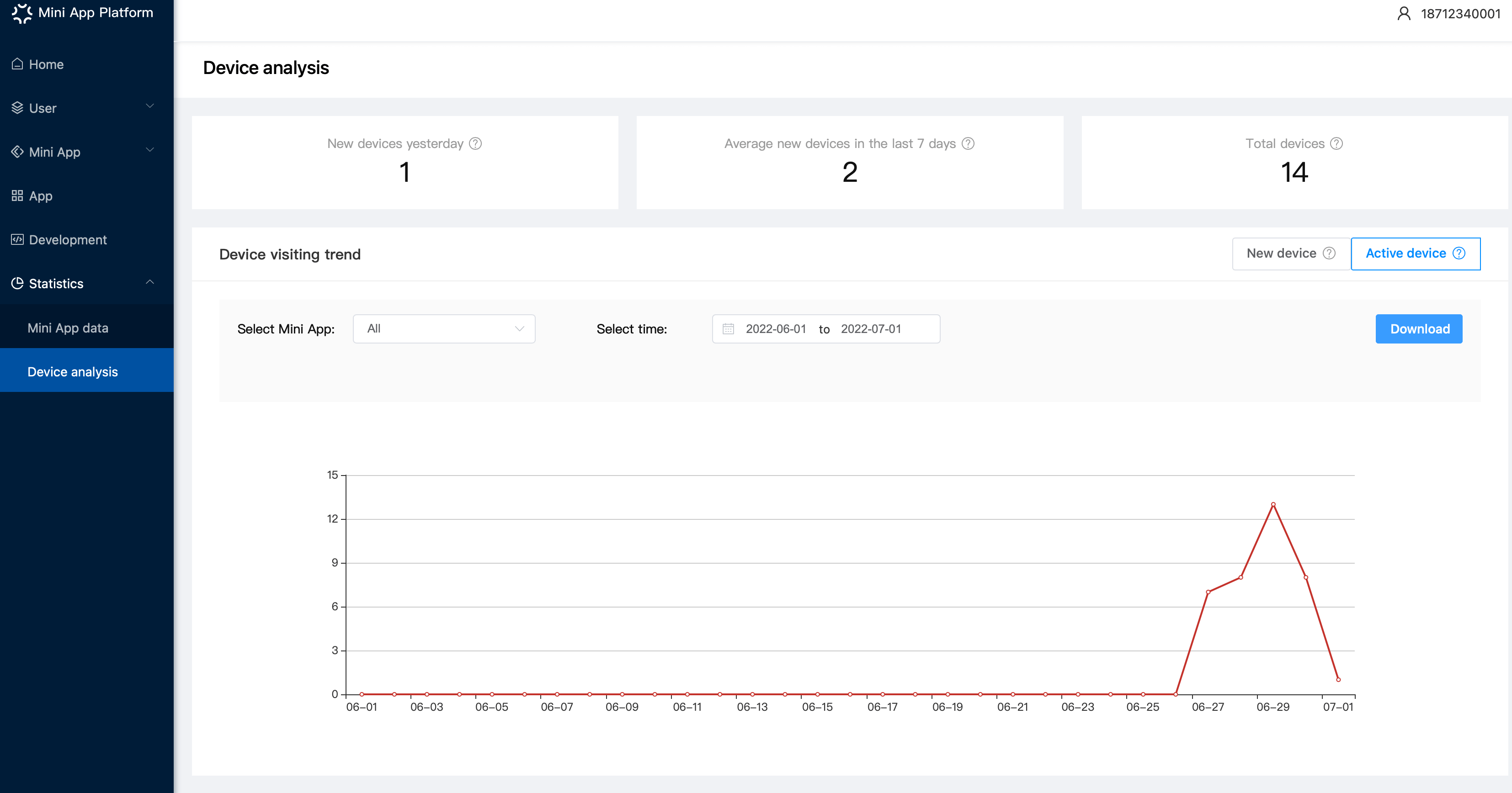
| Number of active device | Active device: The actual device number that opened the selected Mini App in certain Apps during a time period Time: 0:00 ~ 23:59 (UTC+8) (everyday) |
| New devices yesterday | 00:00-23:59(UTC+8) yesterday |
| Average new devices in the last 7 days | 00:00-23:59 (UTC+8) T-8~T-1(T means today) |
| Mobile phone | During the selected time period, statistics on mobile phone systems that have visited a certain Mini App through a certain App |
| SDK version | Showing all the SDK data and the SDK of the current account |
# Mini App data
In 「Mini App opening trend-Opened time」, you can see the total opened time of all Mini Apps, or select one Mini App to check its data.
In 「Mini App opening trend-Stay period」, you can see the stay period(per time) of all Mini Apps, or select one Mini App to check its data.
The form below shows the corresponding data of the Mini Apps
- Opened time yesterday: 00:00-23:59(UTC+8) yesterday
- Opened time (total): The total opened time
- Average stay time (yesterday): 00:00 ~ 23:59 (UTC+8) yesterday, the average stay time of the Mini App that opened with certain App.
- Stay time (per time):The stay time (per time) of the Mini App that opened with certain App.

# Device analysis
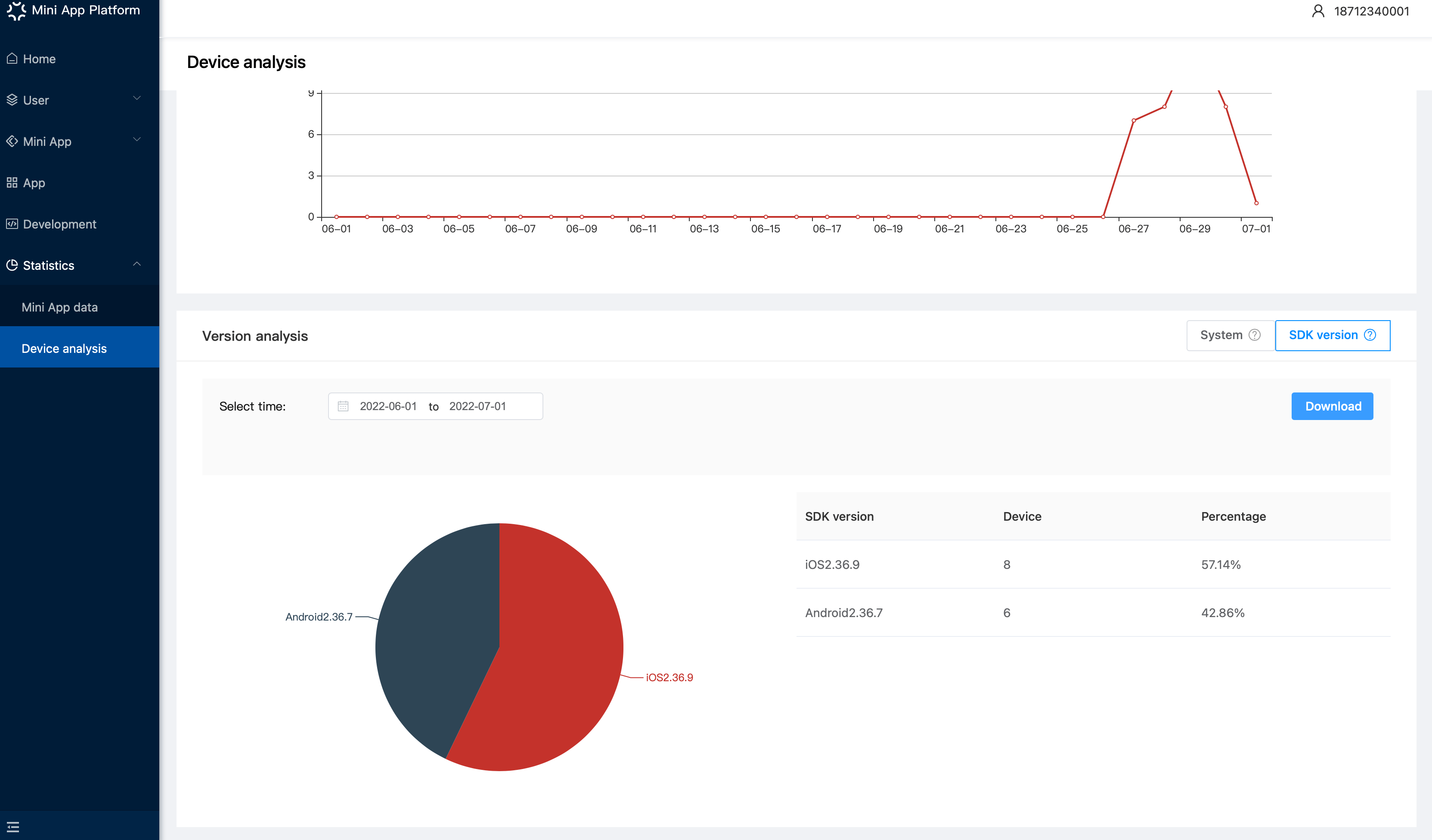
By analyzing the devices of Mini App users, the data is used to seek to perfect Mini Apps by providing information to developers.
It depends on the system. The ID of Android users is in accordance with the system, while the ID of iOS users is in accordance with what the SDK gives.
Here is what you can see in 「Device analysis」

In the 「New devices」, you can see the data of new devices of all Mini Apps. You can also select certain Mini Apps, Apps and time period to check more data.
In 「Active device」, you can see the trend of active devices that have visited the Mini App. By default, you will see the data of all active devices. You can also select certain Mini Apps, Apps and time period to check more data.
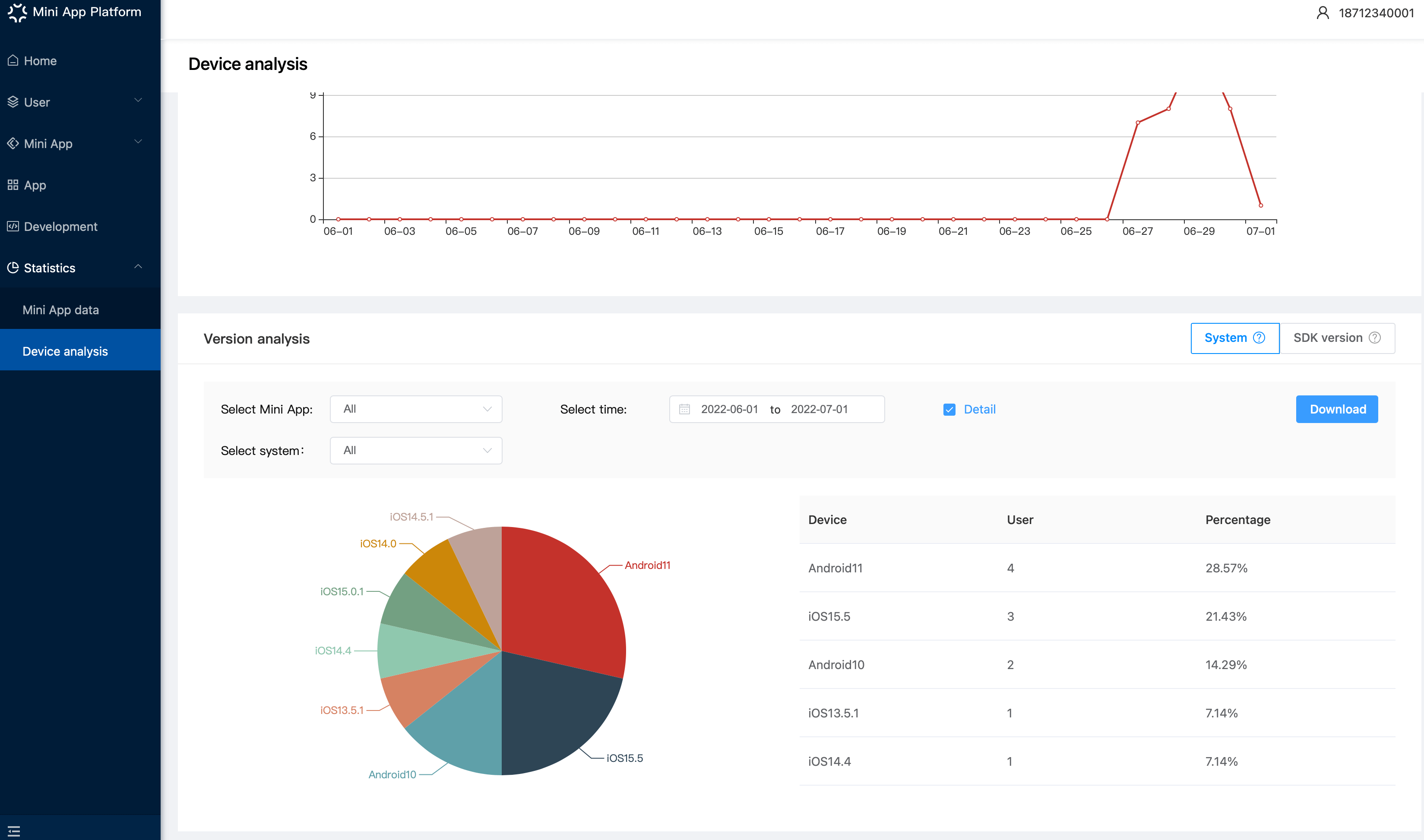
In 「Version analysis-System 」:
- By default, you can see all the device data about Mini Apps that have been opened.
- You can also select certain Mini Apps, Apps and time period to check more data.
- If you select 「Detail」, you can see the detailed version information
In 「Version analysis-SDK 」:
- By default, you can see all the data about SDK version
- You can select a certain system and time to check more data
- If you change the data range, you can also check certain systems (Android/iOS) and the number of devices in the current account