 Protal for Operators
# Protal for Operators
# Mini App
There are four parts in「Mini App」: App ID, Review, Domain and Bind Mini App. Here to manage the number of Mini App for the developer, review Mini App, set a white&black list of domains and bind Mini Apps.
# App ID
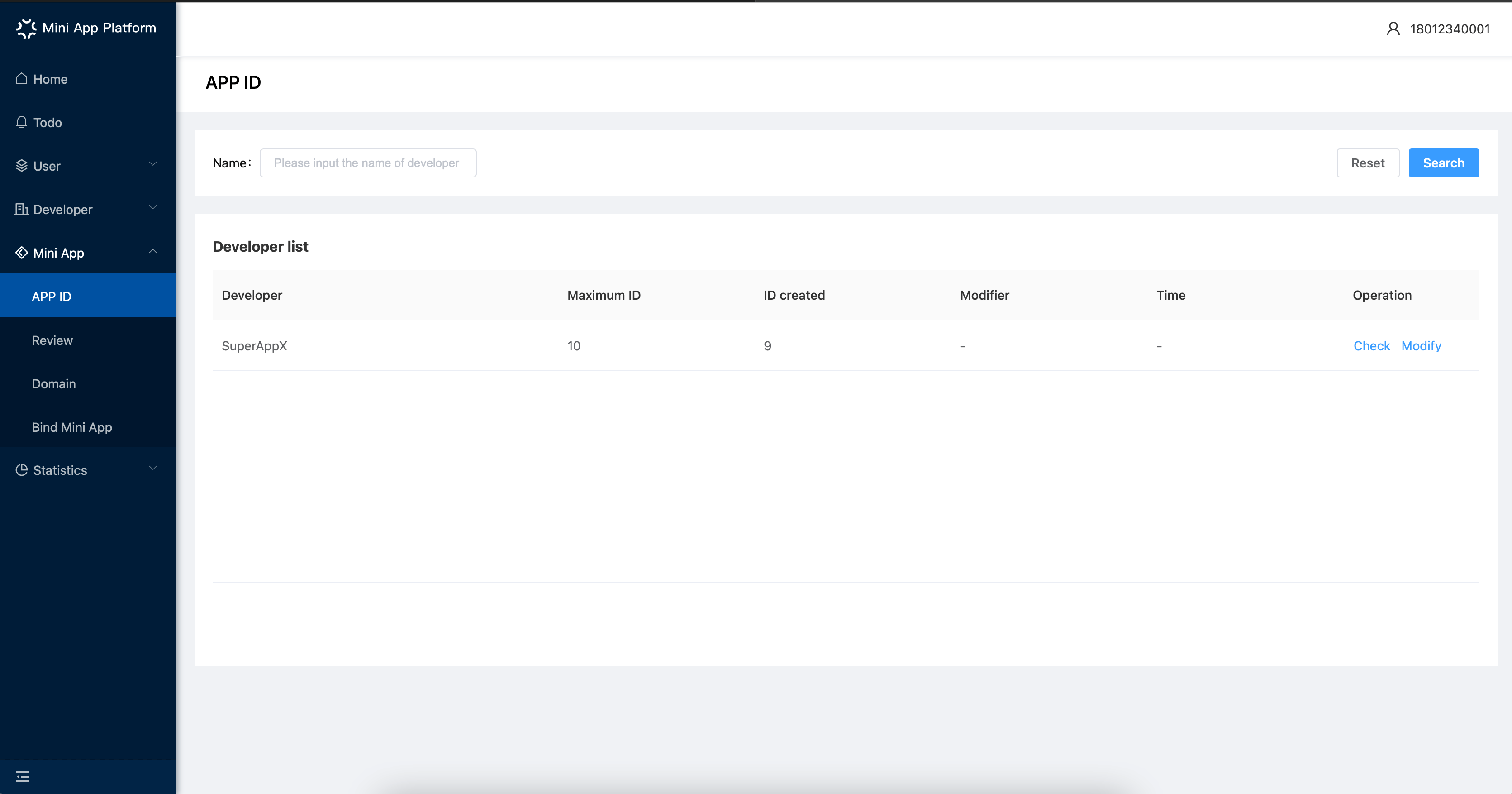
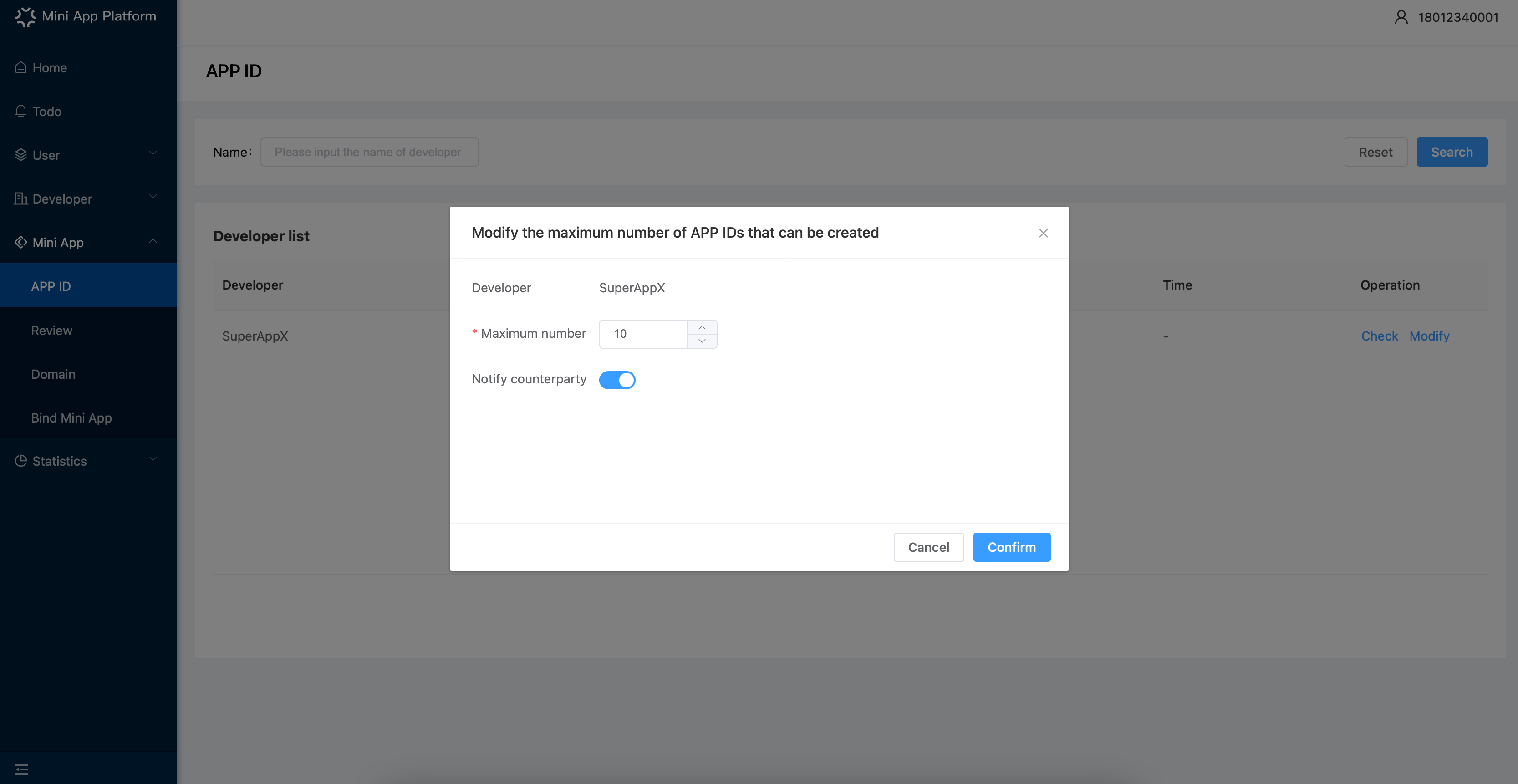
(1) Here operators can see the number of App ID that developers created, and click「Modify」to change the maximum number of App ID for certain developers. When modifying, if you open 「Notify counterparty」, the corresponding developer will receive a notification from the system.
(2) Click 「Check」 to see App ID created by certain developer.
# Review
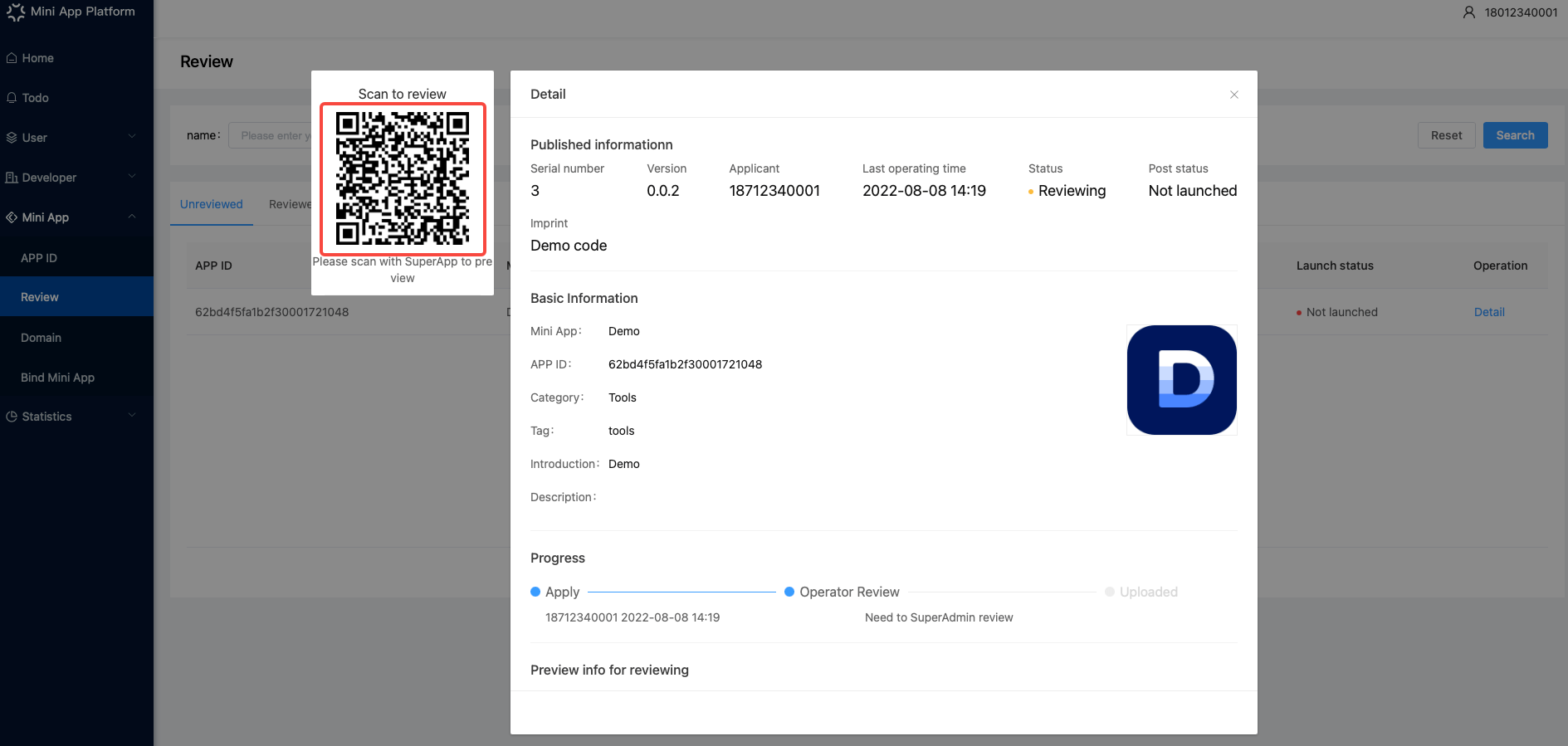
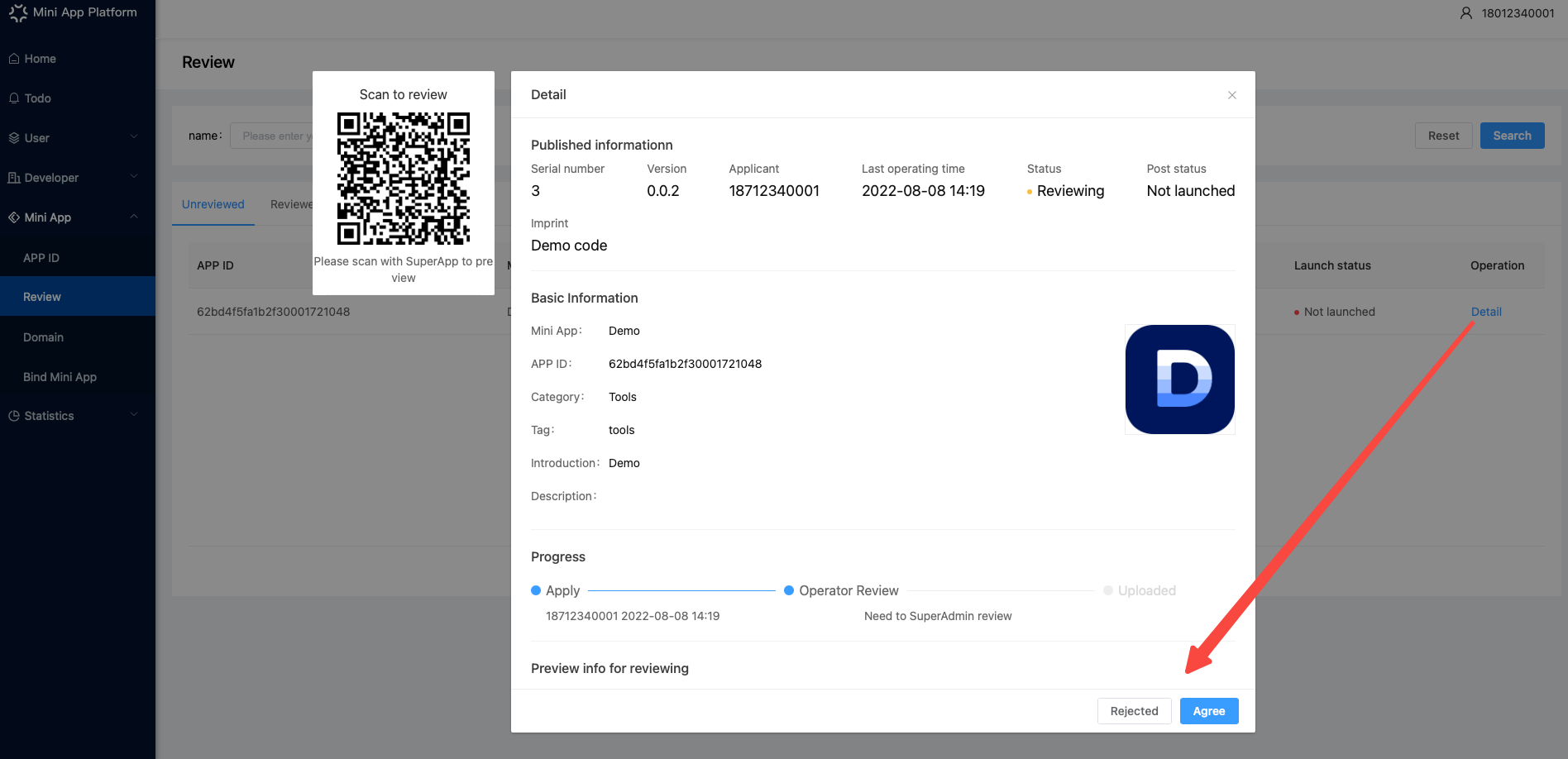
After developers submit a review request, you can see the Mini App to be reviewed on the Mini App-Review page.
- Click 「Detail」to see the detailed information of the Mini App, and scan the QR code with SuperApp to preview it.
- Click 「Agree」 to pass the review of the Mini App.
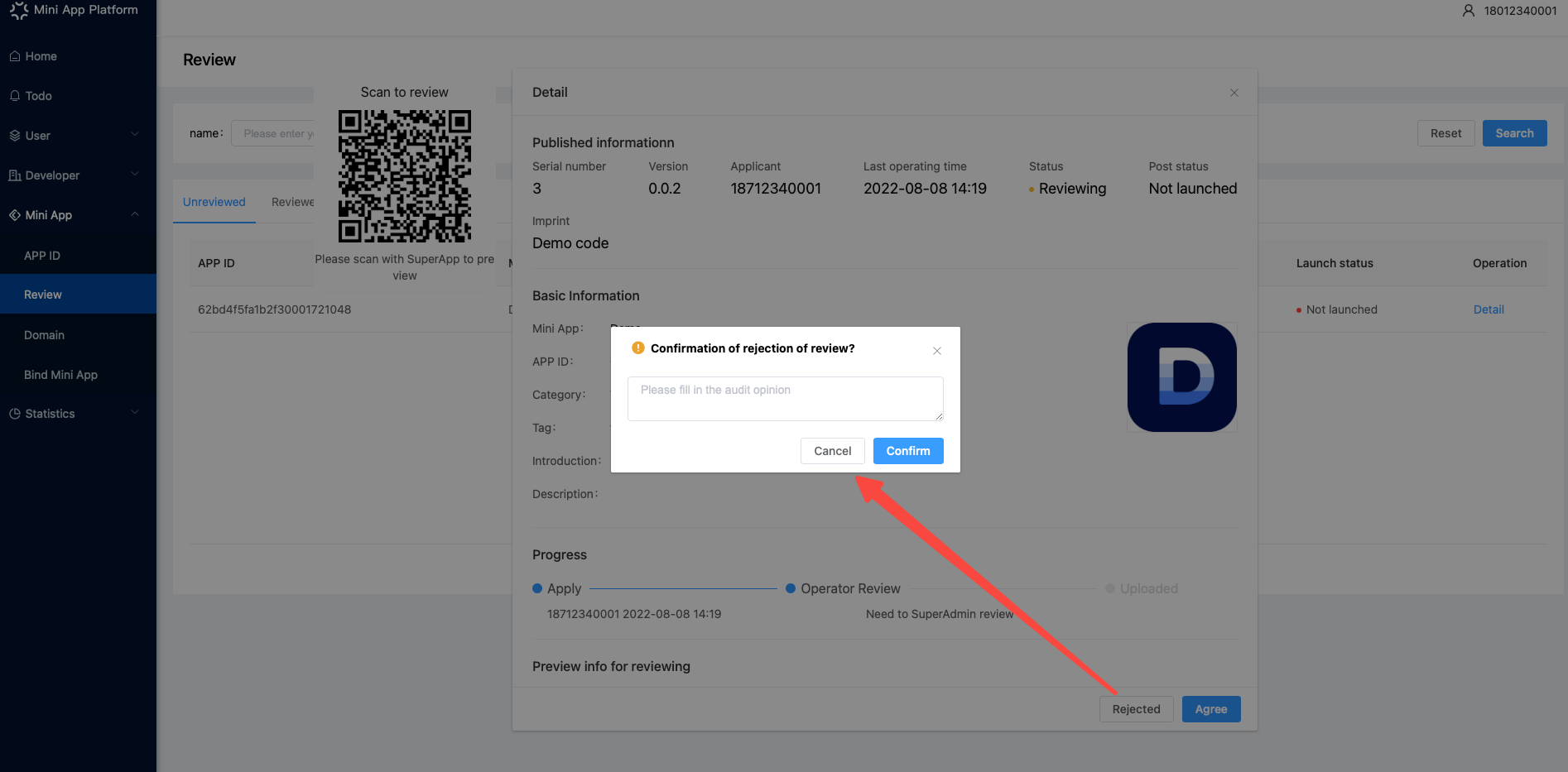
- Click 「Rejected」and enter the reason to reject the review of the Mini App.
# Domain
Operators can set domain to white list and black list:
- After setting the domains to white list, developers' Mini Apps can open them.
- After setting the domains to a black list, all Mini Apps developers cannot open them.
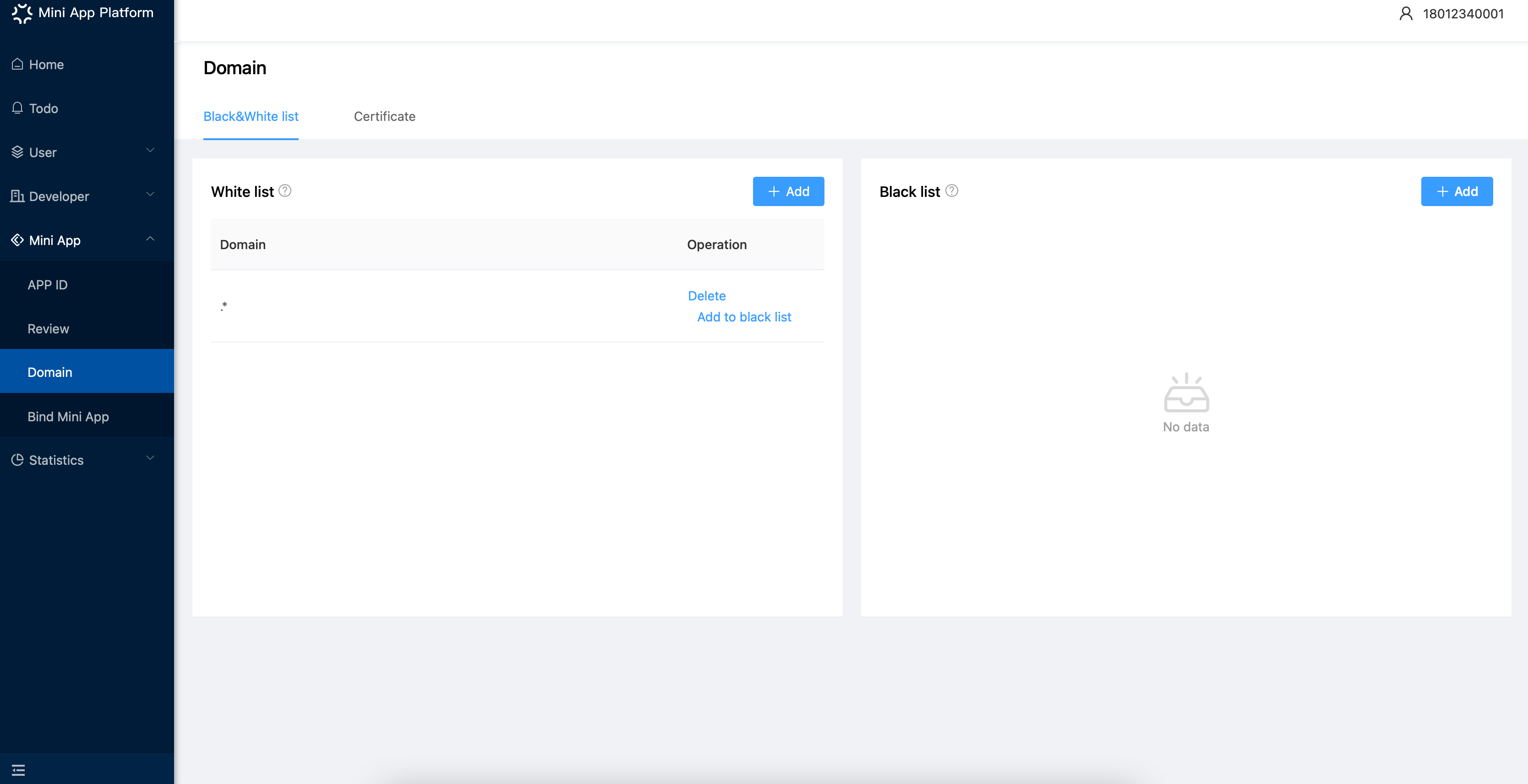
Note: Blacklist domain and whitelist domain do not support configuring root domain. But after configuring domain, the catalog of the domain and the page will be valid at the same time. (For example, https://example.com/page1.html (opens new window) and https://example.com/page (opens new window) will be valid at the same time when https://example.com (opens new window) is added)
# Bind Mini App
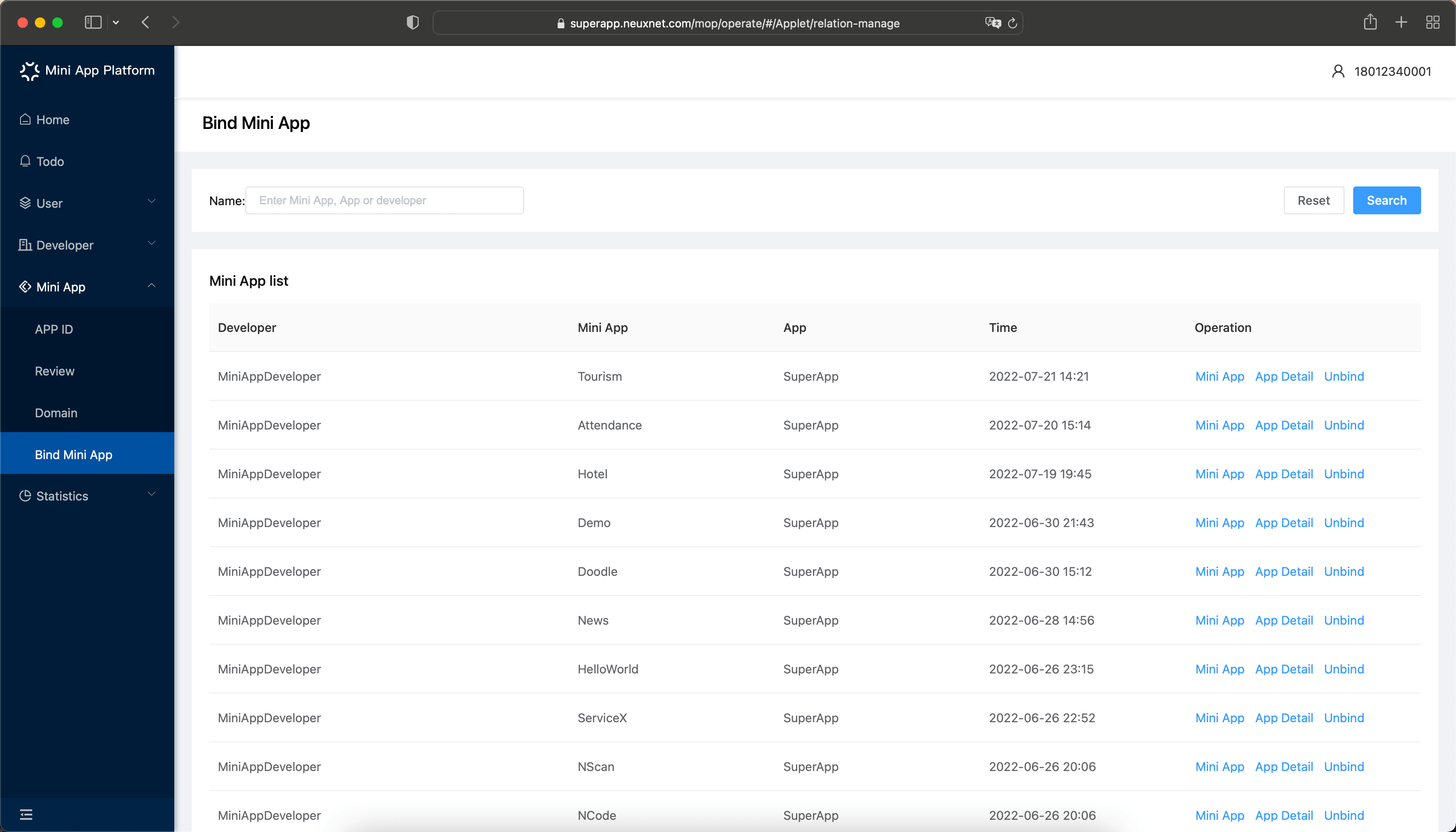
- On this page, operators can view the binding relationship between each developer's Mini App and third-party applications.
- Click the certain Mini App name to view the review list of Mini Apps.
- Hover the mouse over the view button, the corresponding QR code of the Mini App will be displayed, which can be scanned by SuperApp.
- Click a certain bound application, the page will jump to the page of application management menu.
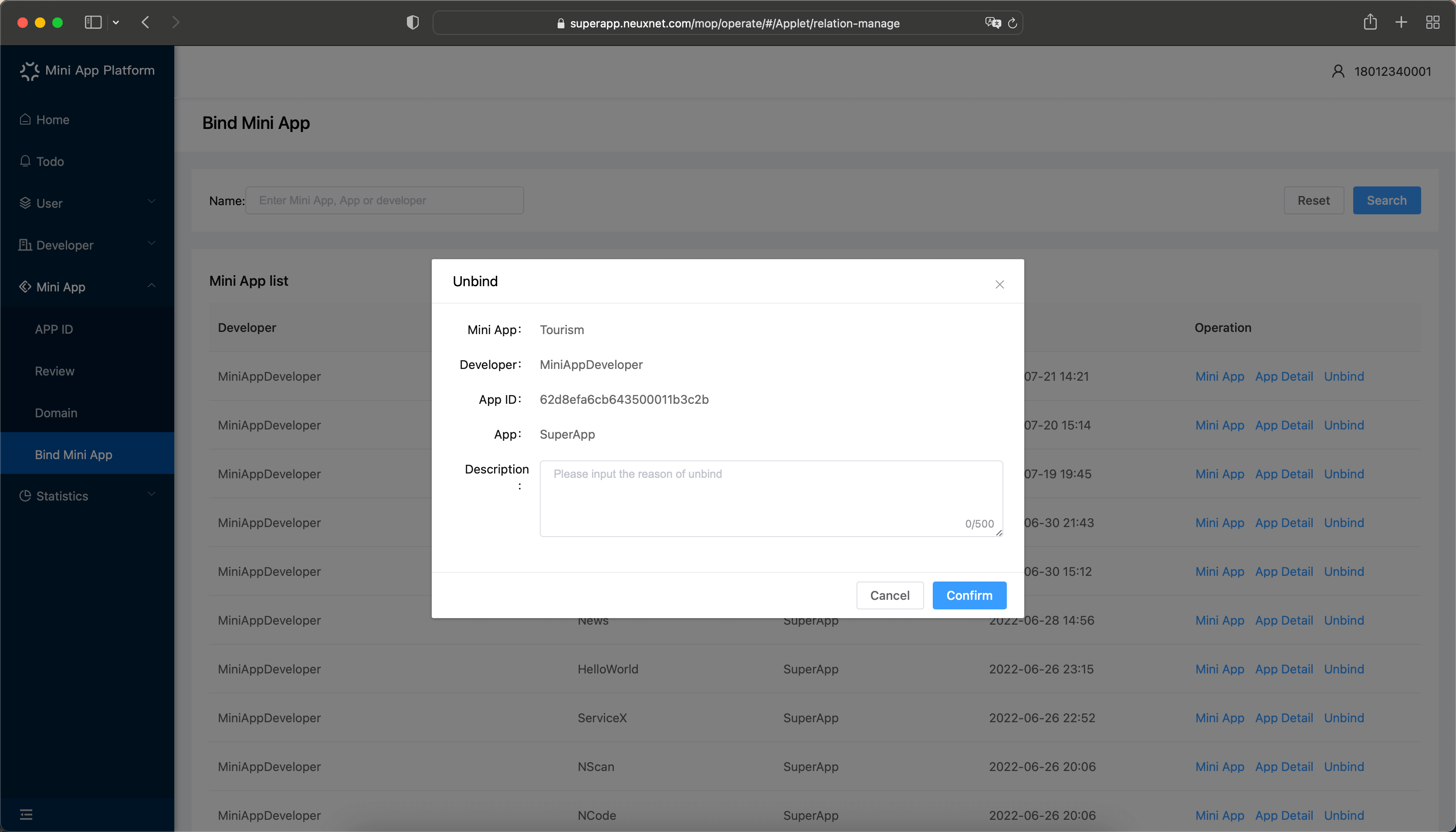
- Operators can also cancel the binding relationship between Mini App and applications. Just find the corresponding Mini App and click "Unbind". But operators need to enter the reason of unlinking, and the unbinding notification will be sent to developers.
# User Management
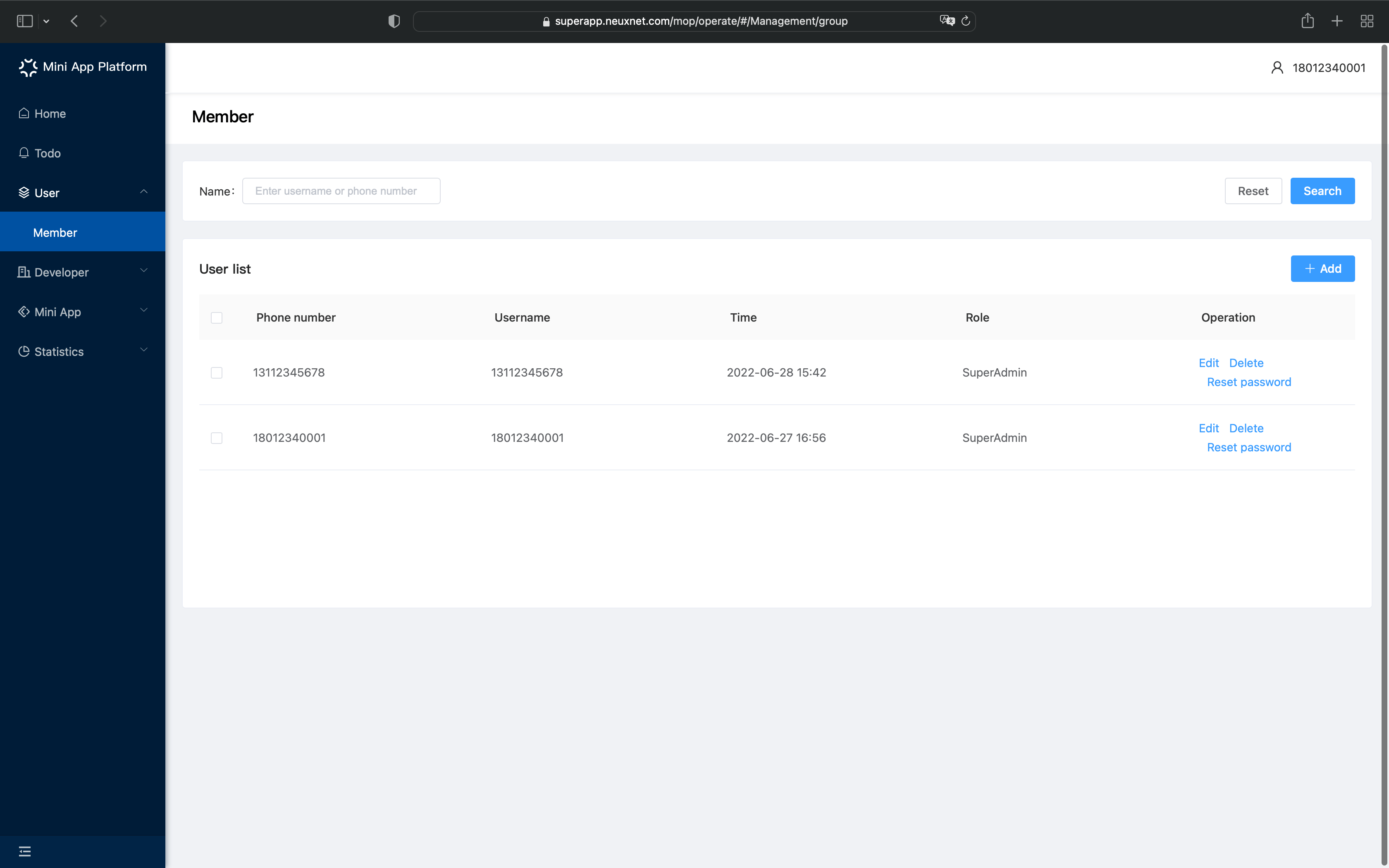
Here you can add, delete, edit and search for the accounts of the members.
Add member
Admins can add members here:
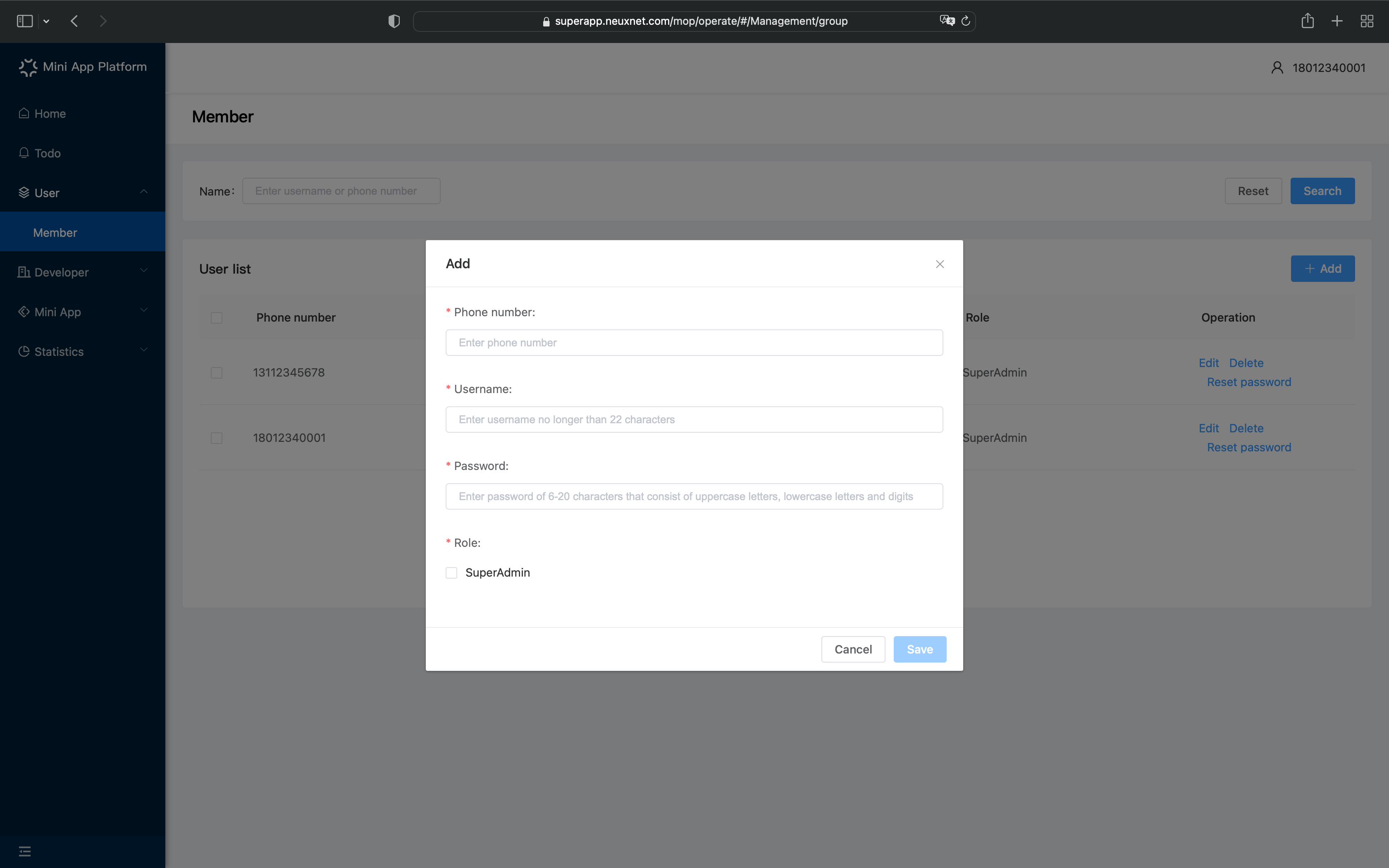
- Click 「Add」;
- Enter information like username, password, phone number and set the role. Then click save to add a member.
- After being added, the member can use this account to login to the Mini App platform.
Delete member
To delete members:
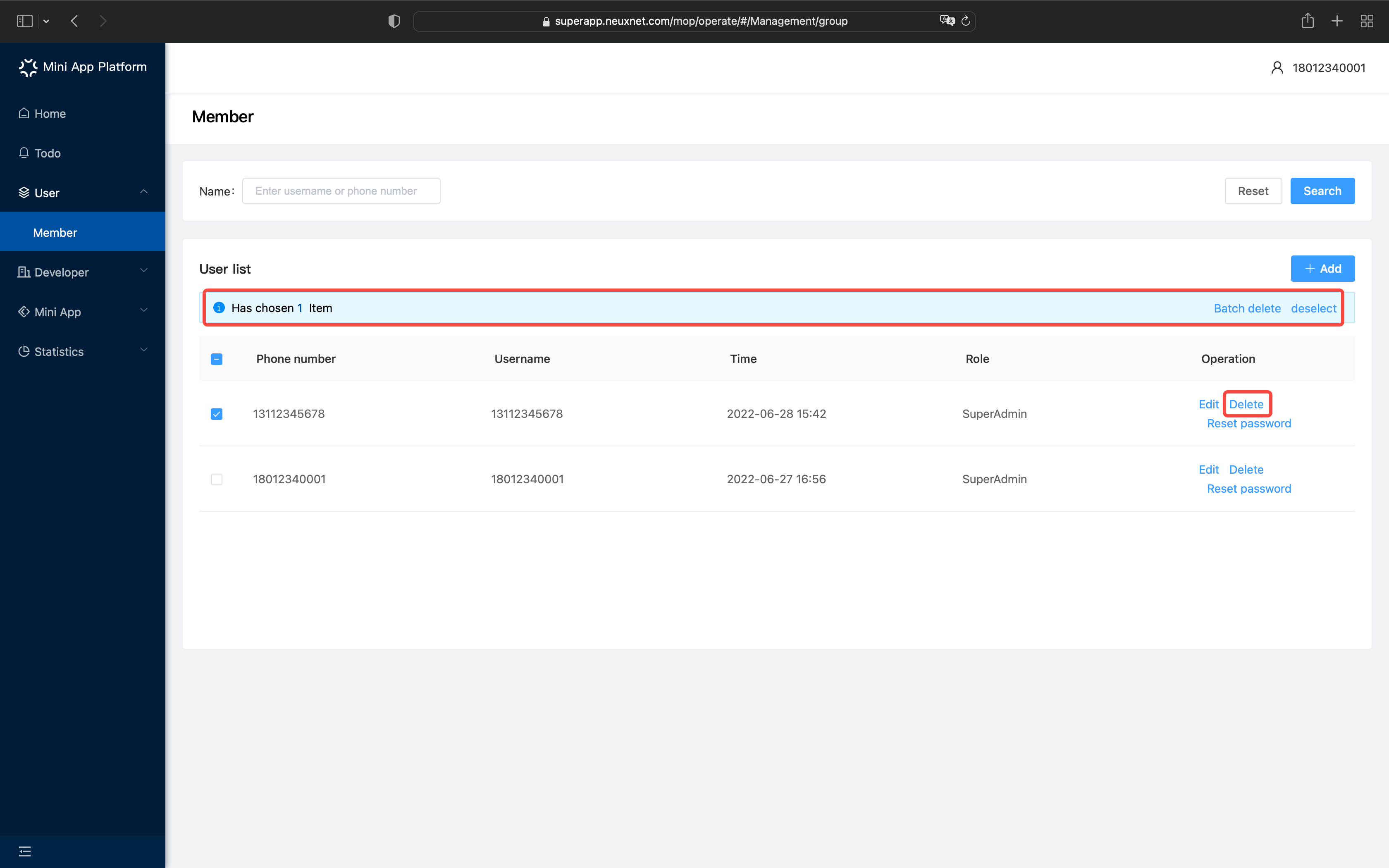
- You can select the members here and click 「batch delete」 to delete the members;
- Or you can click the 「Delete」button to delete a certain member.
Edit member info
To edit the information of a member:
- You can click 「Edit」to edit the information of a member.
- You can edit all the information except phone number;
- 123Abc;To reset the password of a member, click 「Reset password」. After resetting , the password will be "123Abc", which is the default version.
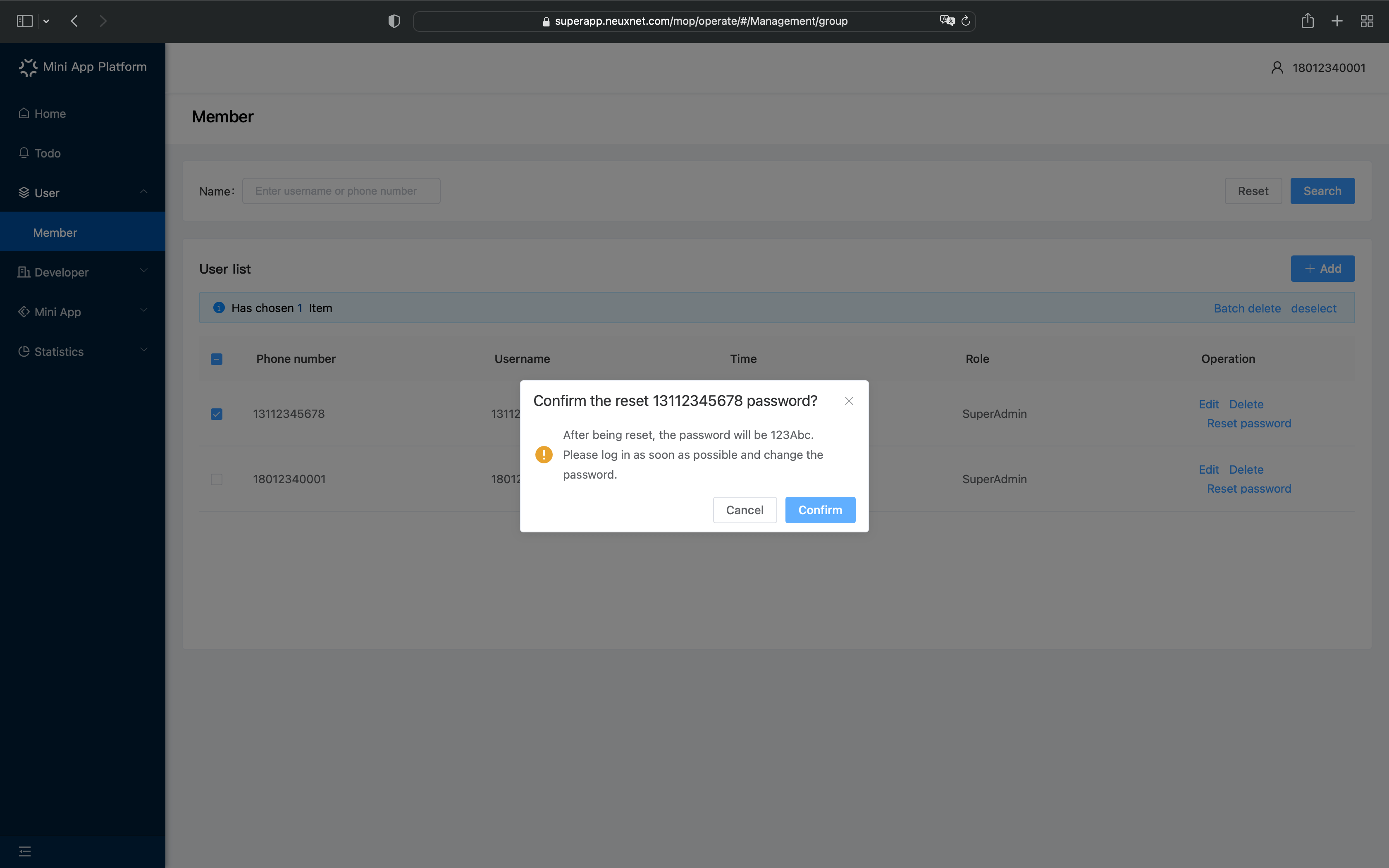
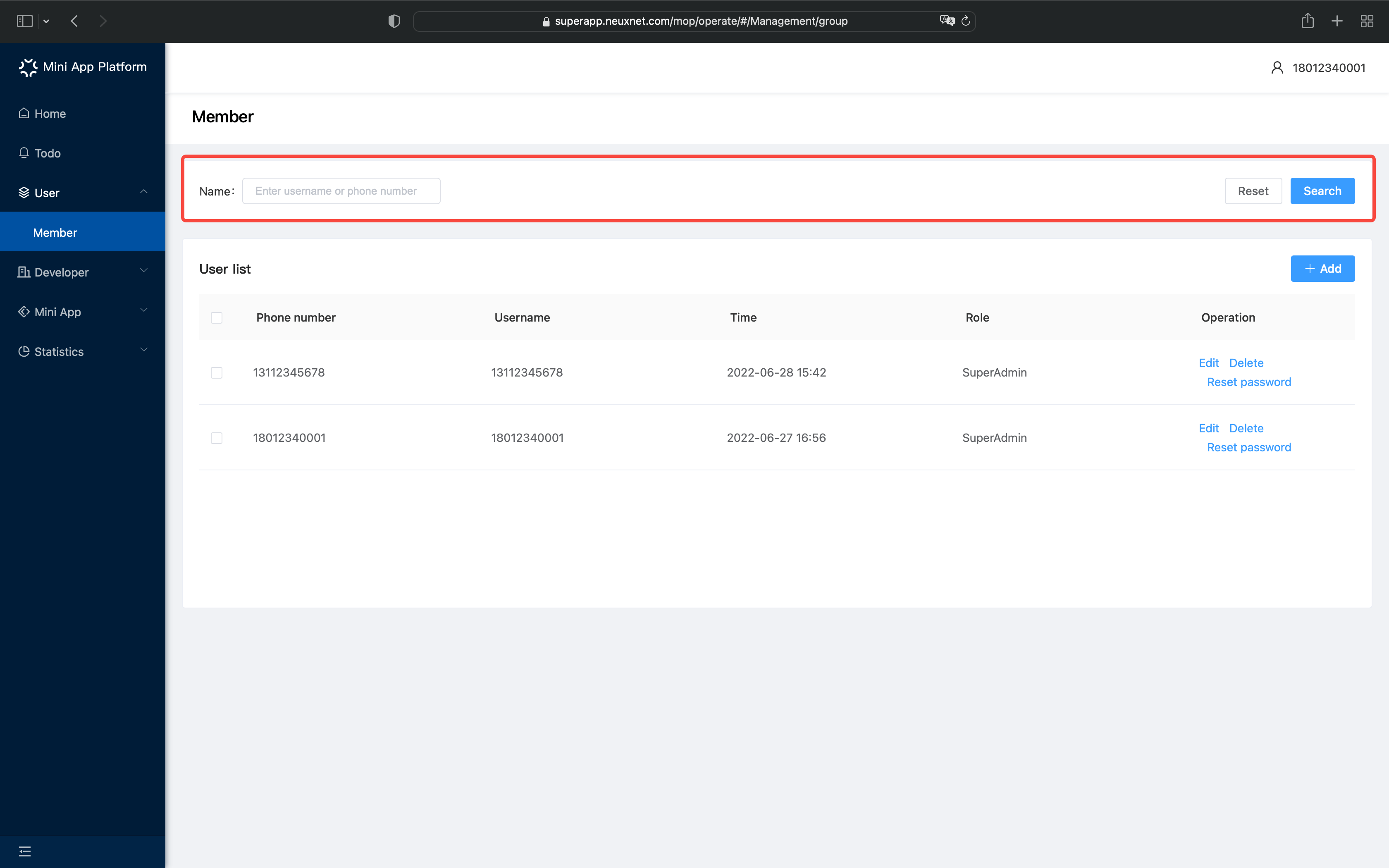
Search member
- You can search a member in the search box;
- You can search through username or phone number.
# Developer
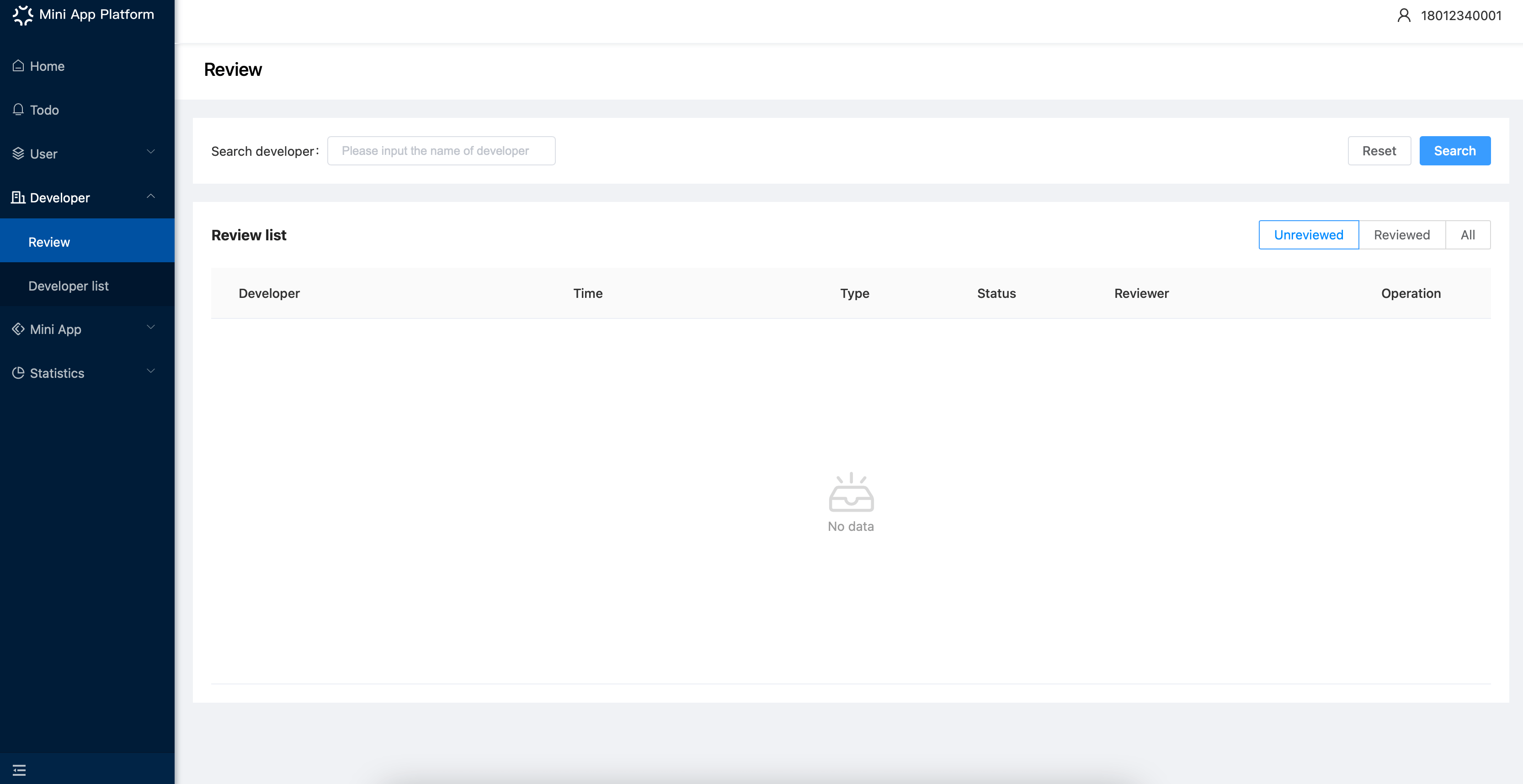
Here you can see the review status and the user list. 「Review」is for reviewing users, and 「Developer list」is for checking and managing the users that registered.
# Review
There are three Tabs: Unreviewed, Reviewed and All;
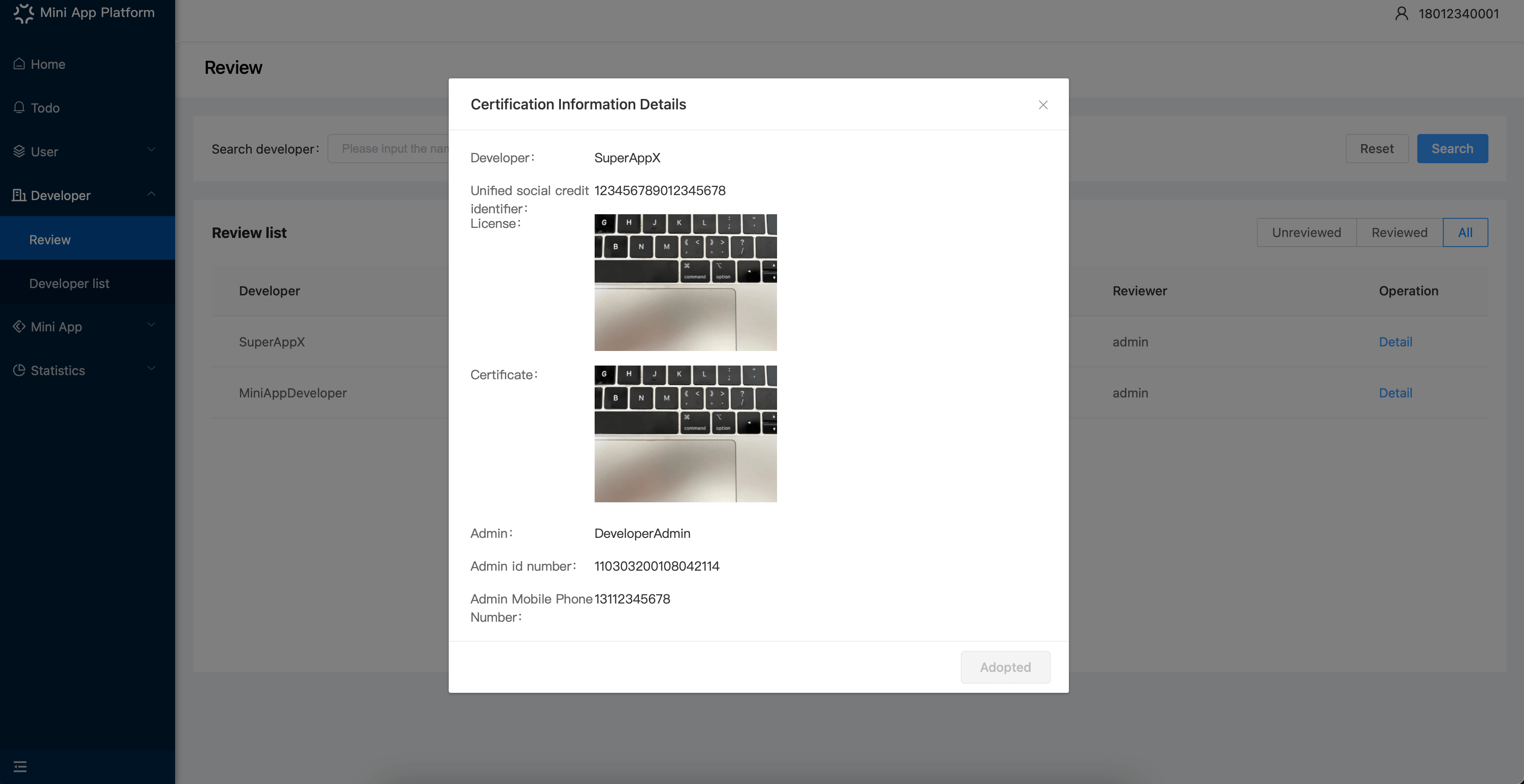
Operators can click 「Detail」to check the verification request and review it;
Click 「Pass」to verify the user; And if want to reject some user, you need to input the reason first.
# Developer list
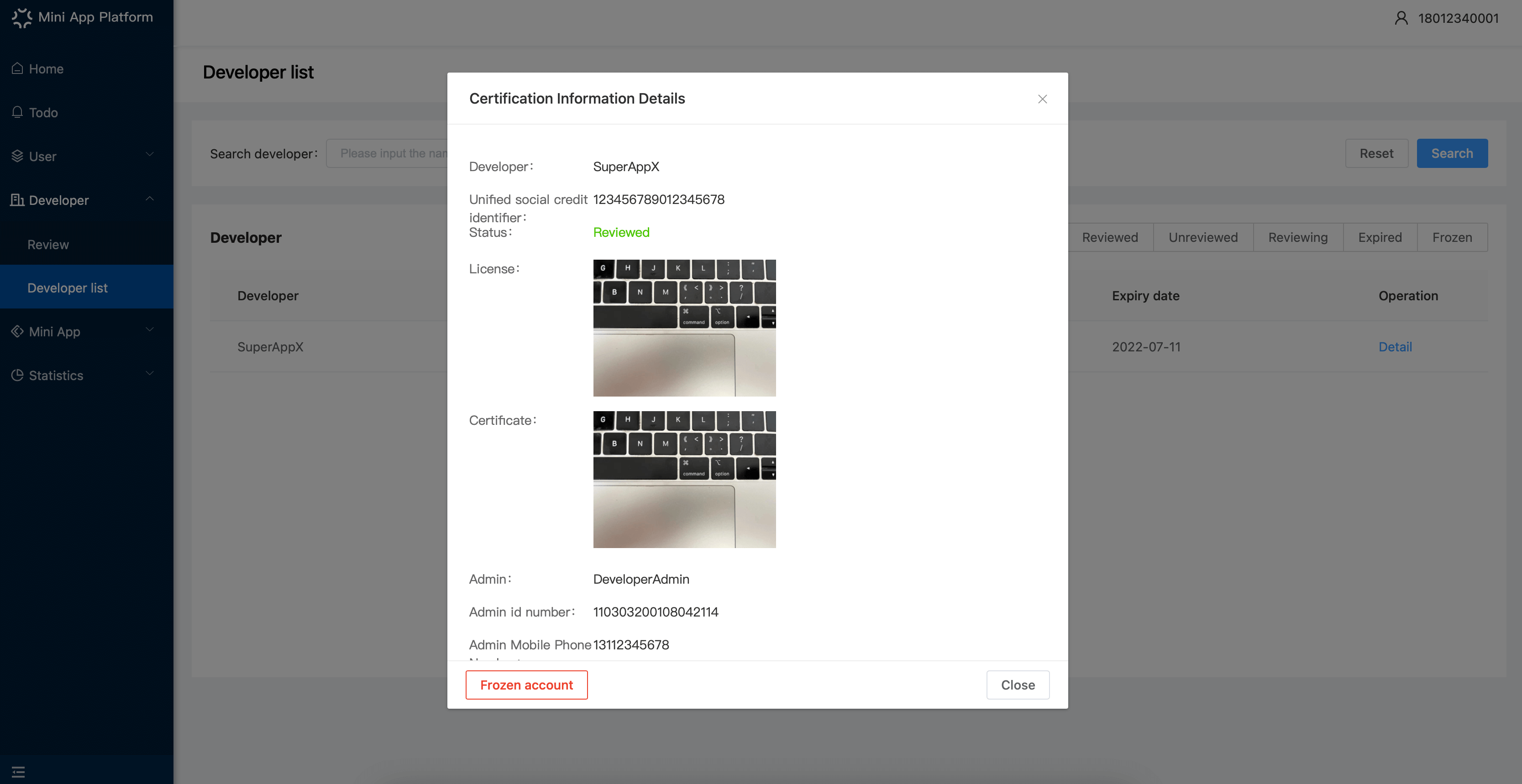
(1) Operators can see the review status of users registered
(2) There are five review status:
- Verified: The verification request has been passed;
- Unverified: The verification request has been rejected;
- Reviewing: The verification request has been submitted and waiting to be reviewed;
- Expired: Verification has expired(Valid for one year) and needs to be verified again;
- Frozen: The user is frozen and cannot use services.
(3)Click 「Detail」to check the info of users. If the user is verified, then you can freeze it, and unfreeze it afterwards.
# Statistics
On the statistics page, you can see statistics of visit peak from developer and Mini Apps. According to the data, you can know how long that Mini Apps and Apps are opened, thus seeing the status of the platform.
# Overview
| Data | Note |
|---|---|
| Developer verified | By 00:00 (UTC+8) today, the total number of developers that have requested verification, including those verified and not verified |
| Developer reviewed | By 00:00 (UTC+8) today, the total number of developers that are verified |
| Developer expired | By 00:00 (UTC+8) today, the total number of developers that are expired |
| Developer frozen | By 00:00 (UTC+8) today, the total number of developers that are frozen |
| Opening trend of Mini Apps | The opened time of selected Mini App in a certain time period.Opened time: The time that a Mini App is opened. One click means one time.Time period: 0:00 ~ 25:59 (UTC+8) everyday |
| Opening trend of developers | The opened time of launched Mini App for selected developer in a certain time period.Opened time: The time that a Mini App is opened. One click means one time.Time period: 0:00 ~ 25:59 (UTC+8) everyday |
| Opening trend of Apps | The opened time of Mini App that are linked and launched for the selected App in a certain time period.Opened time: The time that a Mini App is opened. One click means one time.Time period: 0:00 ~ 25:59 (UTC+8) everyday |
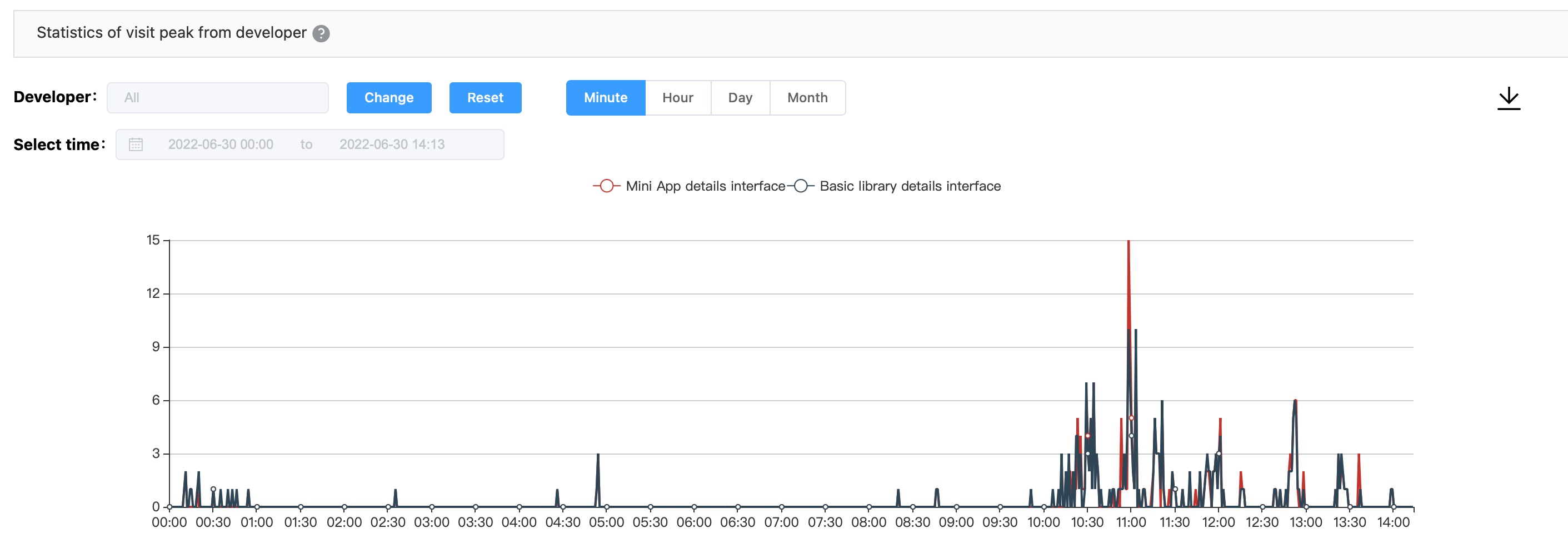
| Statistics of visit peak from developer | QPS(per second) sent by all Apps that linked to developer account.Supported interface: Mini App details interface and basic library details interfaceYou can also select the time unit for display:【Minute】: The summed up QPS of 00~59 seconds, which is the smallest unit【Hour】: Taking 12:00-12:59 as an example, it's the summed up QPS during 12:00:00 ~ 12:59:59【Day】: The summed up QPS dering 00:00:00 ~ 24:59:59 everyday【Month】: The summed up QPS of all the days in a natural month |
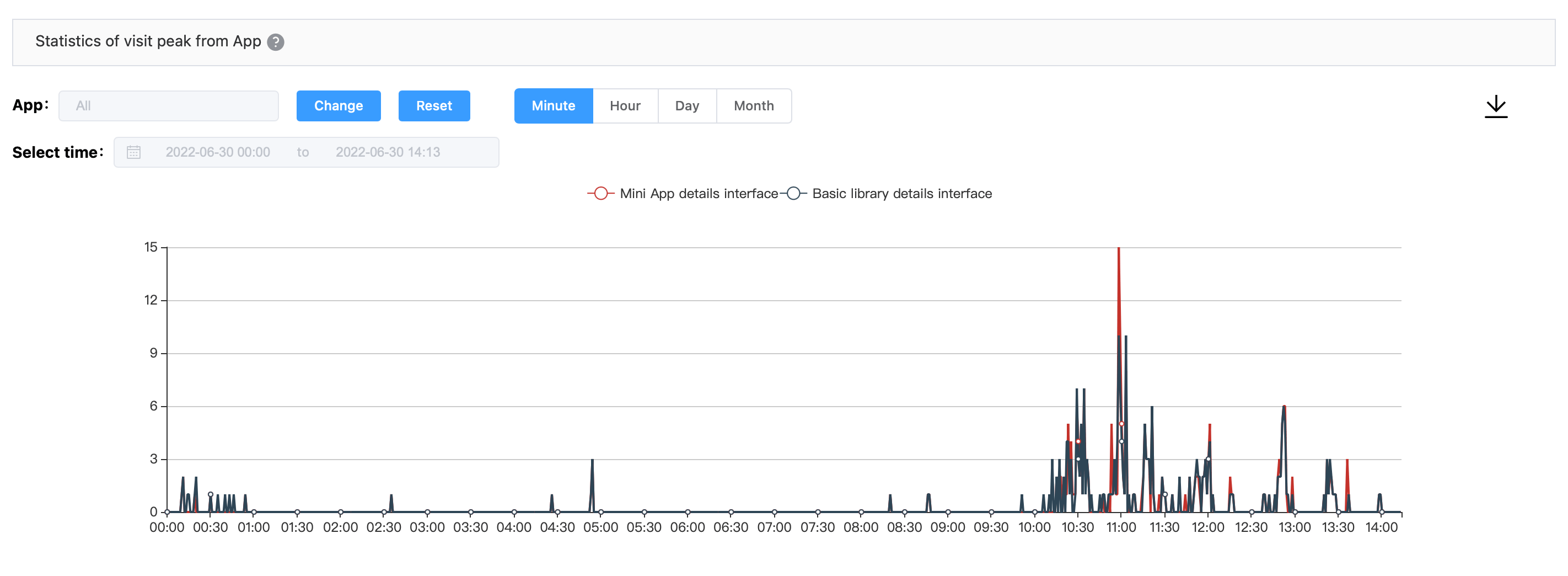
| Statistics of visit peak from App | QPS(per second) sent by certain AppsSupported interface: Mini App details interface and basic library details interfaceYou can also select the time unit for display:【Minute】: The summed up QPS of 00~59 seconds, which is the smallest unit【Hour】: Taking 12:00-12:59 as an example, it's the summed up QPS during 12:00:00 ~ 12:59:59【Day】: The summed up QPS dering 00:00:00 ~ 24:59:59 everyday【Month】: The summed up QPS of all the days in a natural month |
# Developer data
Here is the page of Developer data

In 「Statistics of visit peak from developer」, you can choose a certain developer, and select the time unit to check the data.
In 「Statistics of visit peak from App」, you can choose to see the QPS of certain App created by certain developer, and select the time unit to check the data.
- Mini App data
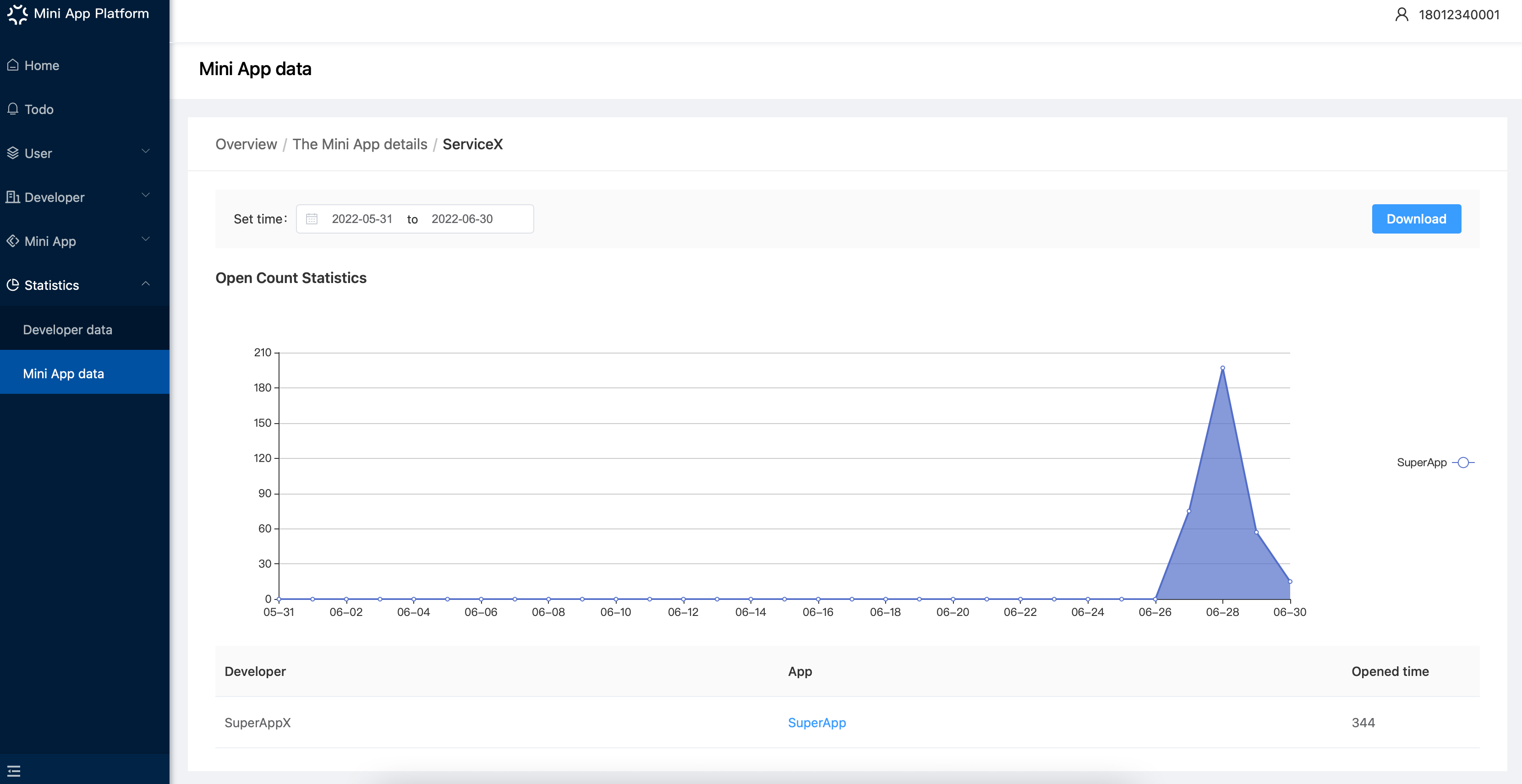
Overview of Mini App data. You can select a certain time period to check the opened time of Mini App launched. By default, you will see the top 5 Mini Apps and cooperation channels as the most popular Mini Apps and cooperation channel.
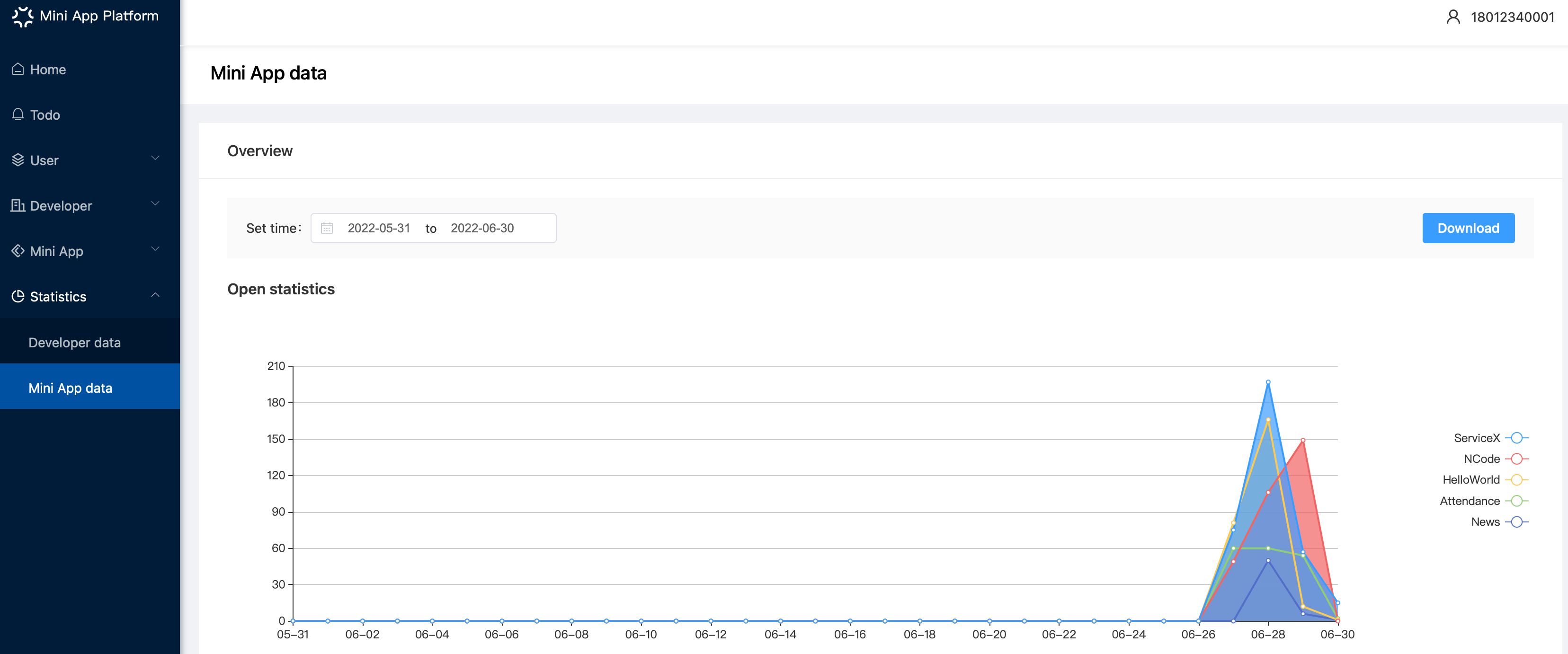
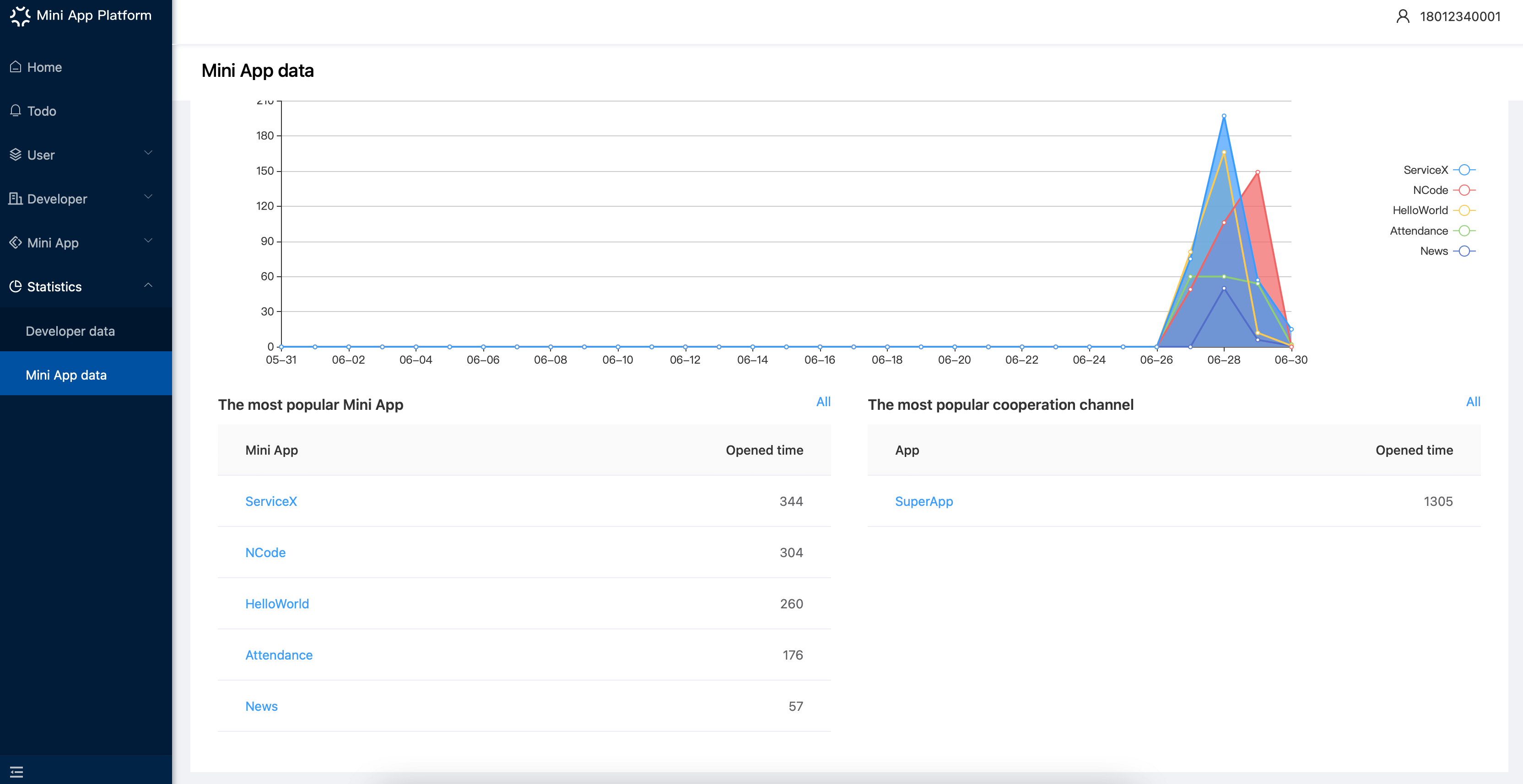
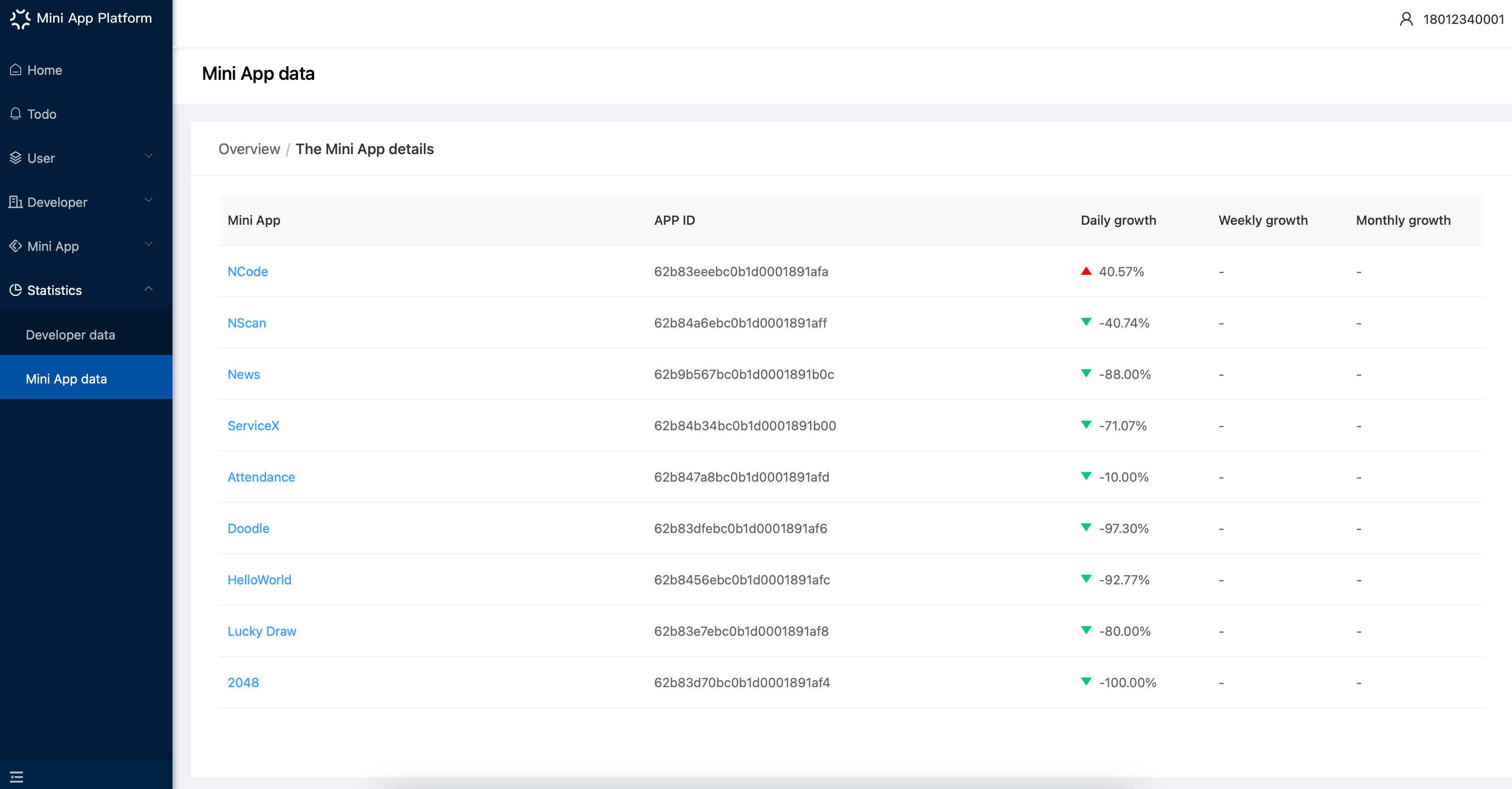
Click 「All」 in 「The most popular Mini App」to check all the opened time of every Mini App, including the detailed information of daily, weekly and monthly growth.
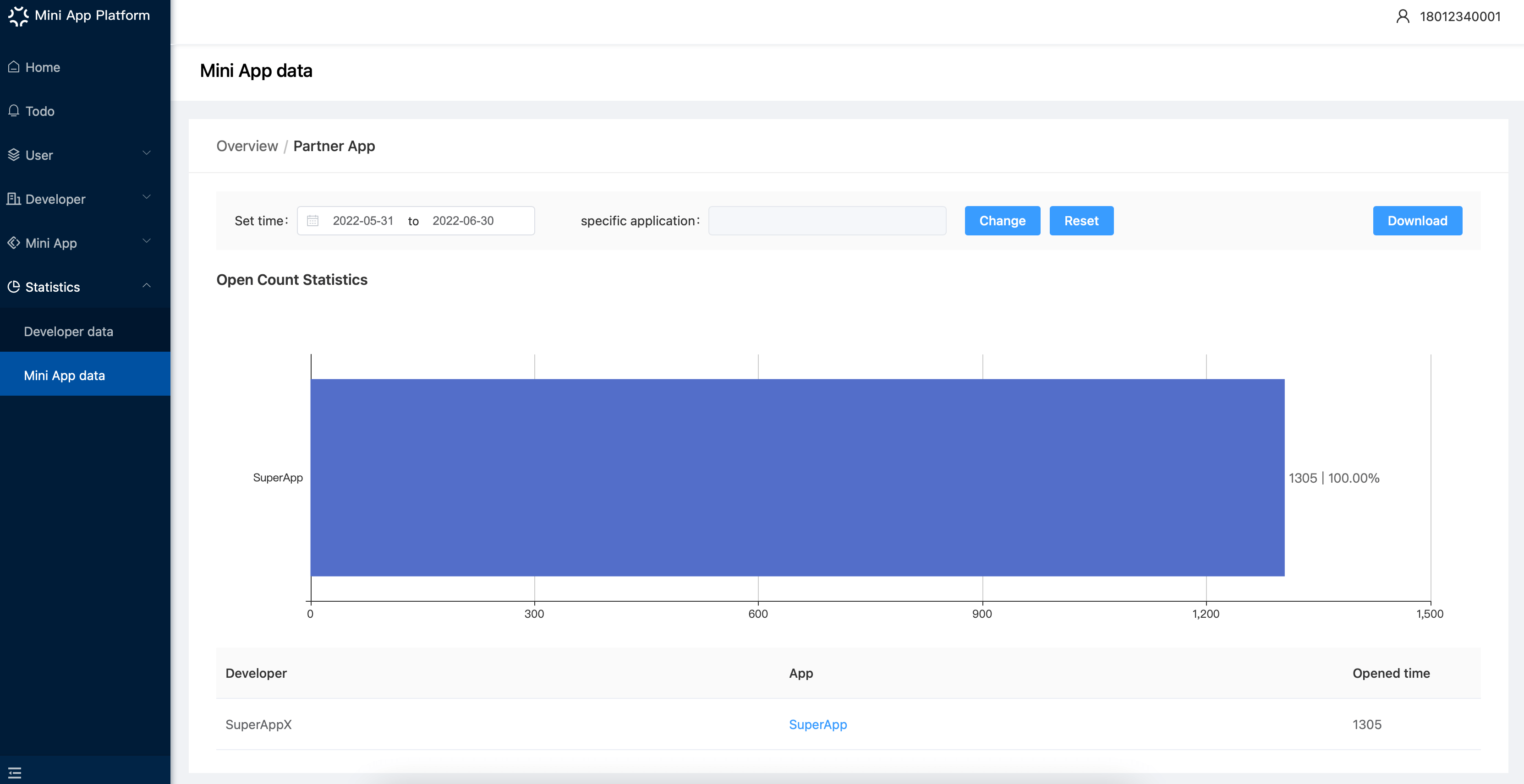
In 「The most popular cooperation channel」, you can see the cooperation Apps whose opened time rank top 5. Click 「All」to check the detailed opened time and their ranks.
On a certain statistics page you can see the opening trend of Mini App in a certain time period and the data on different channels.